





3x3 Idol Portrait Collage

3x3 Idol Portrait Collage
Soft Black Mist Portrait
Editorial Indoor Portrait
360 Concert Panorama
Journey to the West Spider Spirit Poster

35mm Flash Basketball Editorial
Subway Phone Candid
Douyin Livestream Screenshot
18-Panel Brand Identity Sheet
RPG Inventory Icon Grid
No install and no Microsoft account. Write a prompt, add references if you have them, pick a size, and let MAI Image 2.7 handle the rest.

Open the MAI Image 2.7 AI generator above and describe the picture: the subject, the setting, the style and the light. Put any words that should appear in the image inside quotes, such as a headline or a label, so they come out spelled the way you typed them.
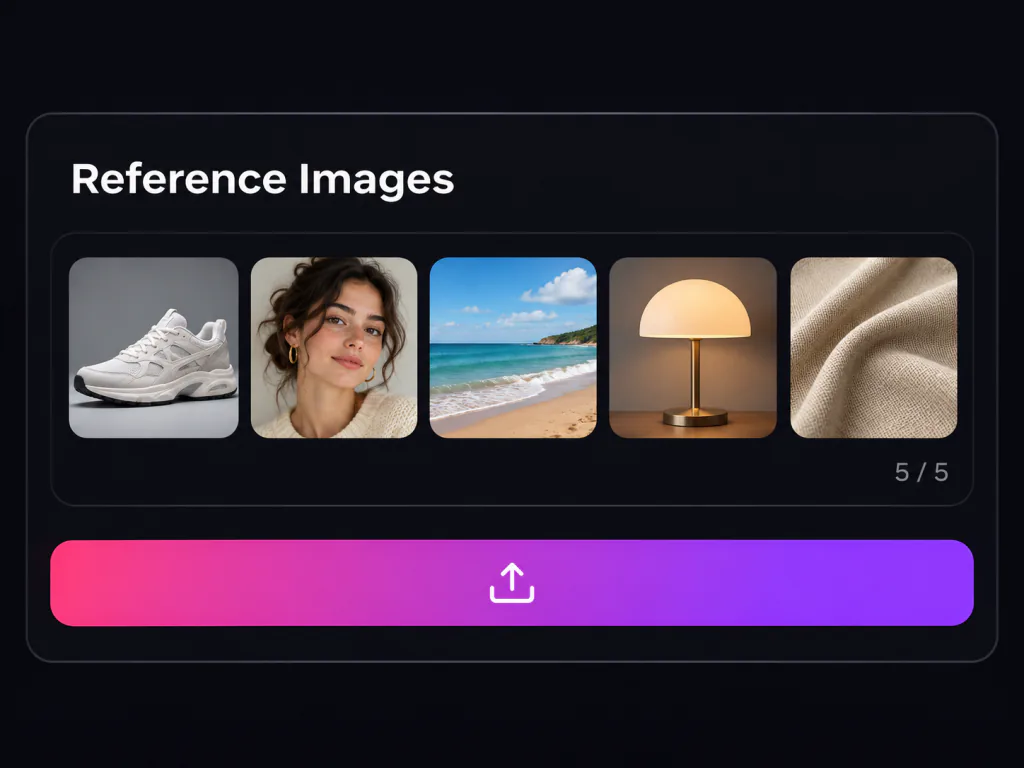
Switch to Image to Image and upload up to 5 pictures: a product to keep, a face to reuse, a room to restyle or a style to follow. Then tell MAI Image 2.7 what to take from each one and what must stay exactly as it is.
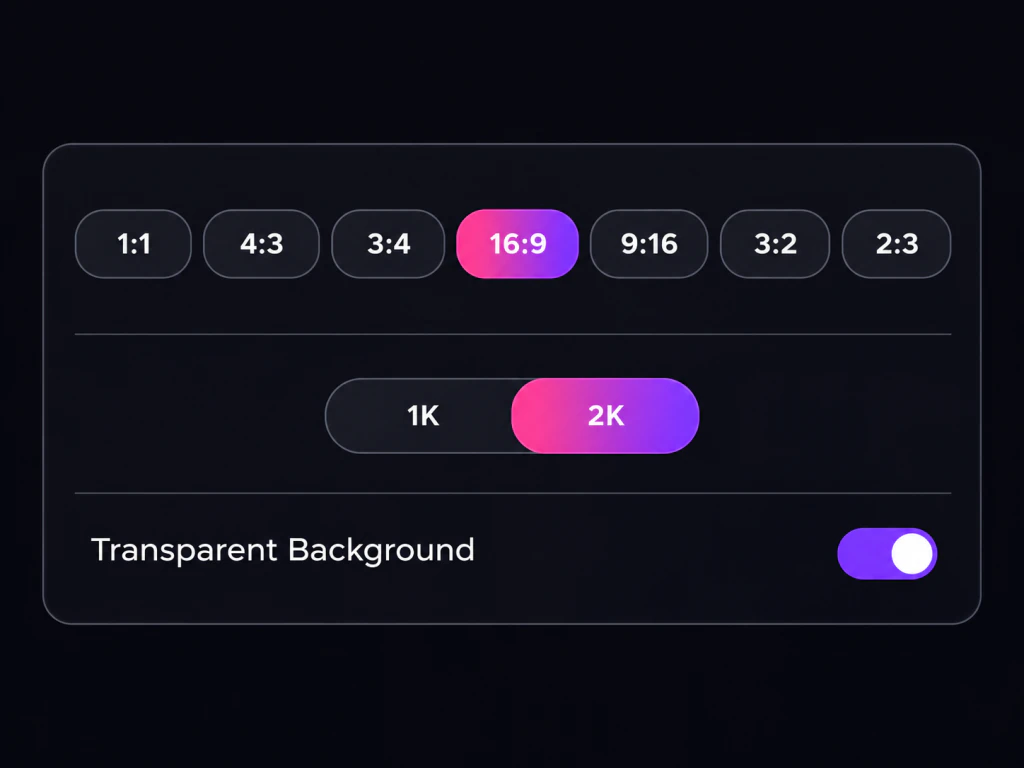
Choose MAI Image 2.7 for final assets or MAI Image 2.7 Flash for quick drafts. Pick a frame from 1:1, 4:3, 3:4, 16:9, 9:16, 3:2 or 2:3, or leave it on auto, then choose 1K or 2K. Transparent Background is on by default, so subjects come out as cutout PNGs; switch it off for a full scene.
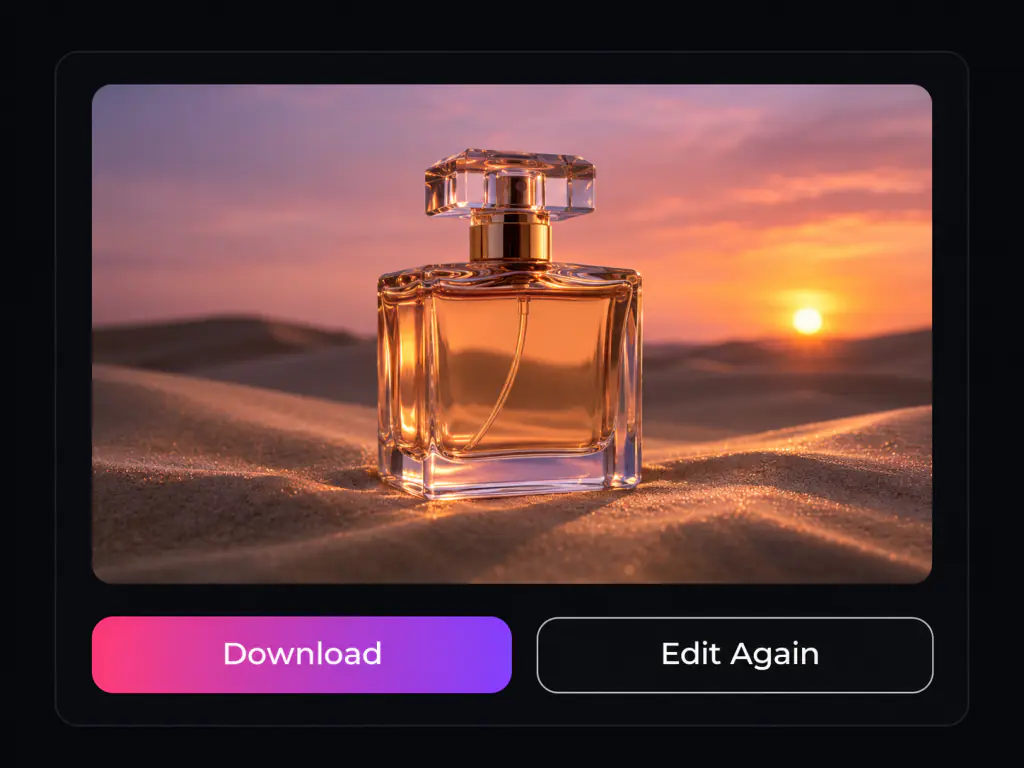
Run MAI Image 2.7 and check the result. To change one detail, upload that image again as the reference and describe only the change. When it looks right, download the PNG.
Run Microsoft's newest image model, MAI Image 2.7, right in your browser. Turn a prompt into a 2K image, change one object in a photo without touching the rest, combine up to 5 reference images and export cutouts on a transparent background. Switch to MAI Image 2.7 Flash for fast drafts.
Free to start, text to image, image to image editing, transparent PNG, 5 reference images
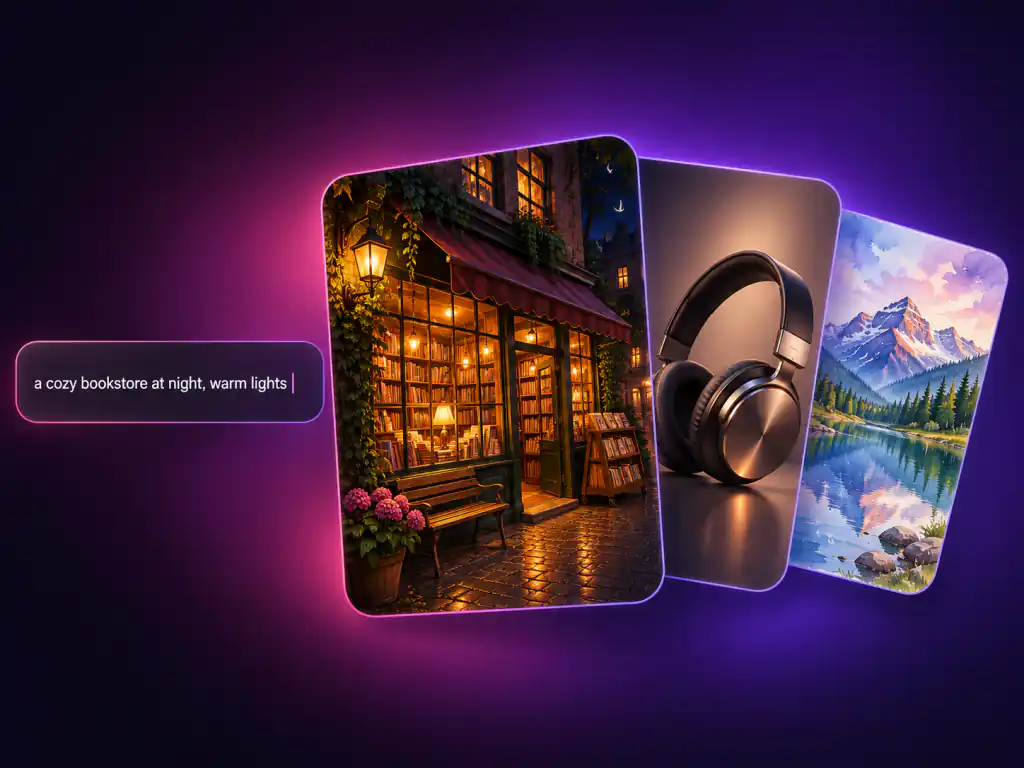
MAI Image 2.7 is the newest image generation and editing model from Microsoft AI, released in public preview on November 17, 2026 as the successor to MAI Image 2.6. You will also see it written as MAI-Image-2.7 or Microsoft MAI Image 2.7, and it ships with a faster sibling, MAI Image 2.7 Flash. The MAI Image 2.7 AI image model is a 20 billion parameter diffusion model that Microsoft rebuilt for editing work: it changes the object you name without disturbing the layout, keeps results consistent when you edit the same image again, outputs subjects on transparent backgrounds and accepts several reference images at once. The MAI Image family also powers Bing Image Creator.
Microsoft says 2.7 improves on 2.6 across every editing task it was tested on.
MAI Image 2.7 for final quality, MAI Image 2.7 Flash for speed and volume.
Subjects can come out on a transparent background, ready for any layout.
Six things MAI Image 2.7 does well, each one ready to try in the generator above.

What makes MAI Image 2.7 AI worth adding to your image workflow.
MAI Image 2.7 changes the object you name and leaves the rest of the frame alone, so approved work stays approved.
Product shots, logos and stickers come out on a transparent background, no masking tool needed.
Mix a person, a product, a style and a place in one MAI Image 2.7 AI image.
Switch to MAI Image 2.7 Flash to explore prompts and variations quickly, then finish with MAI Image 2.7.
Headlines, labels and signs keep the lettering style and perspective of the original.
Download your results clean and use them in ads, listings and client work.
From online stores to film crews, here is who gets the most out of MAI Image 2.7.

Place one approved product into studio, kitchen, bedroom and seasonal scenes with MAI Image 2.7, without the product shape or color drifting.
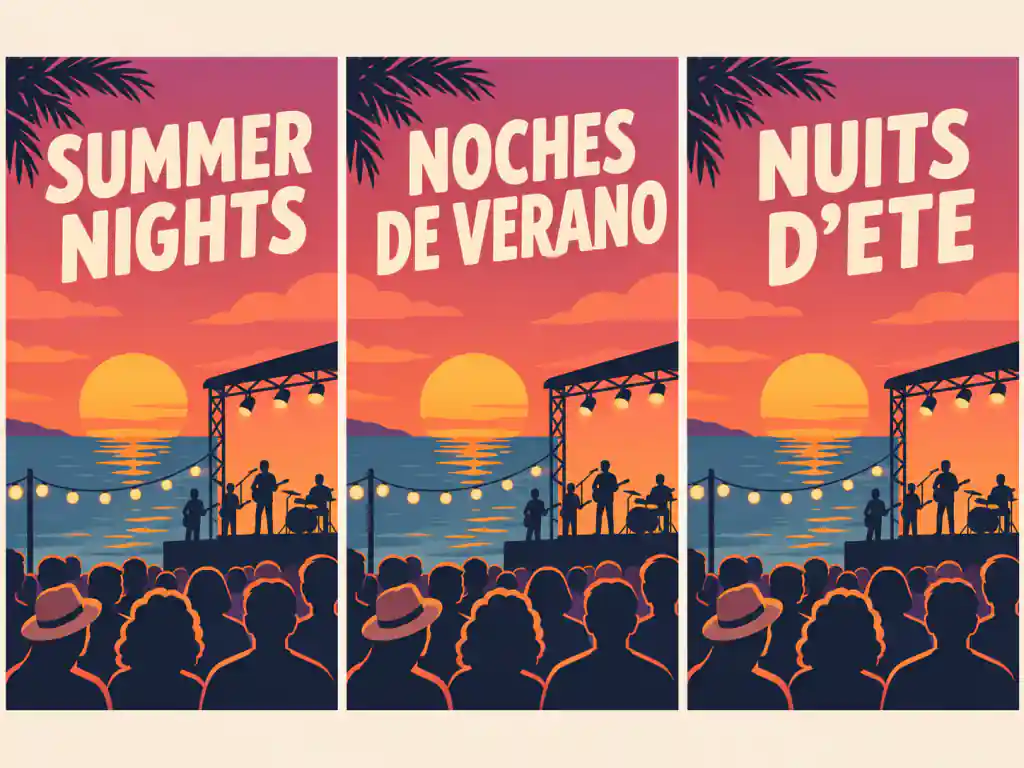
Update headlines and offers on finished creatives, and localize one campaign poster into several languages with the layout untouched.

Build mood boards, packaging mockups and clean transparent assets with the MAI Image 2.7 AI image model, then refine details edit by edit.

Make bold thumbnails, social covers and stickers quickly with Flash, then polish the winners in 2K.
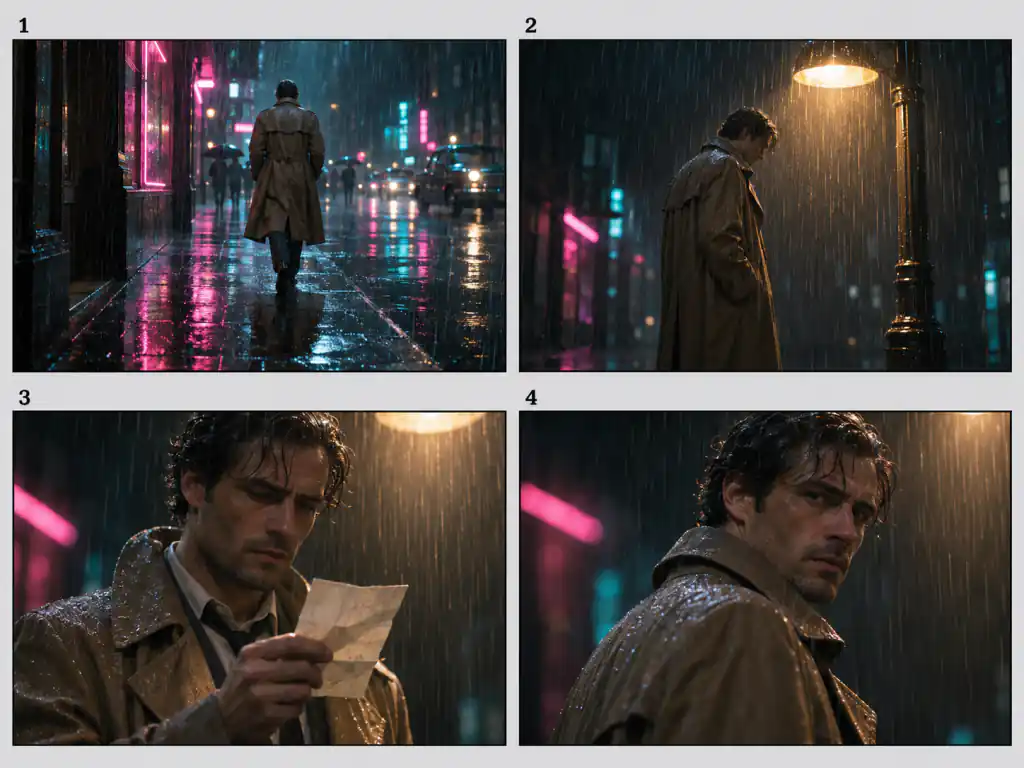
Keep the same character across storyboard frames and relight scenes to test the mood before a shoot.

Upload a faded, creased or torn photo and ask MAI Image 2.7 to clean it up, rebuild missing corners and bring back detail.
Answers about MAI Image 2.7 editing, transparency, references, comparisons and access.
MAI Image 2.7 is the latest image generation and editing model from Microsoft AI, the team behind Copilot and Bing. It turns a text prompt into an image and edits existing pictures, with a focus on precise changes that leave the rest of the scene alone. The MAI Image 2.7 AI image model comes in two versions: MAI Image 2.7 for top quality and MAI Image 2.7 Flash for speed and volume.
You can start free on this page: sign in, write a prompt and generate with MAI Image 2.7 before you pay for anything. Access inside Microsoft products such as MAI Labs or Foundry is separate from the generator above.
Use MAI Image 2.7 when quality matters most, such as hero images, product shots and detailed edits. Use MAI Image 2.7 Flash when you want fast drafts or many variations; Microsoft describes it as an optimized version of the same model, built for speed and lower cost. Both are in the model menu of the generator above.
MAI Image 2.6 already handled editing and multiple reference images. Microsoft says MAI Image 2.7 was rebuilt for editing: it holds the layout steadier when you change one object, keeps results consistent across repeated edits, and adds native transparent backgrounds and larger 2K output.
At launch Microsoft reported that MAI Image 2.7 edged out GPT Image 2.6 on an independent image editing leaderboard, though the gap was small and rankings move often. In practice MAI Image 2.7 is a strong pick for targeted edits and cutouts, while GPT Image 2.6 is worth trying for heavy text layouts. You can run both on this site and compare.
Yes. Switch to Image to Image, upload the photo and describe the change, for example change the car to glossy racing green or change the sign from "BAKERY" to "COFFEE". MAI Image 2.7 keeps the lettering style, lighting and perspective, and leaves the rest of the picture in place.
Yes. MAI Image 2.7 can output a subject on a transparent background, so product shots, logos, icons and stickers are ready to use without a manual cutout. On this page Transparent Background is switched on by default and the file downloads as a PNG; switch it off when you want a full scene.
You can upload up to 5 reference images per run here. MAI Image 2.7 can combine people, products, styles and scenes from them while keeping each one recognizable, so say in the prompt which image supplies what.
MAI Image 2.7 can output up to about 4 megapixels, the same pixel count as 2048 by 2048. On this page you can pick 1K or 2K and the frames 1:1, 4:3, 3:4, 16:9, 9:16, 3:2 and 2:3, or let the model choose with auto.
Microsoft first showed MAI Image 2.7 as an editing preview on October 27, 2026, then released the full model with text to image, editing and the Flash version in public preview on November 17, 2026.
The MAI Image family is now the default model family in Bing Image Creator. On this page you can choose MAI Image 2.7 or MAI Image 2.7 Flash directly, pick the size and turn transparent backgrounds on or off.
Yes. MAI Image 2.7 images you generate here are yours to use in ads, product listings, social posts and client work. Downloads carry no visible watermark, and each image stays in your creation history so you can download it again later.
Write a prompt or upload a photo, add up to 5 references and let MAI Image 2.7 make the change.