




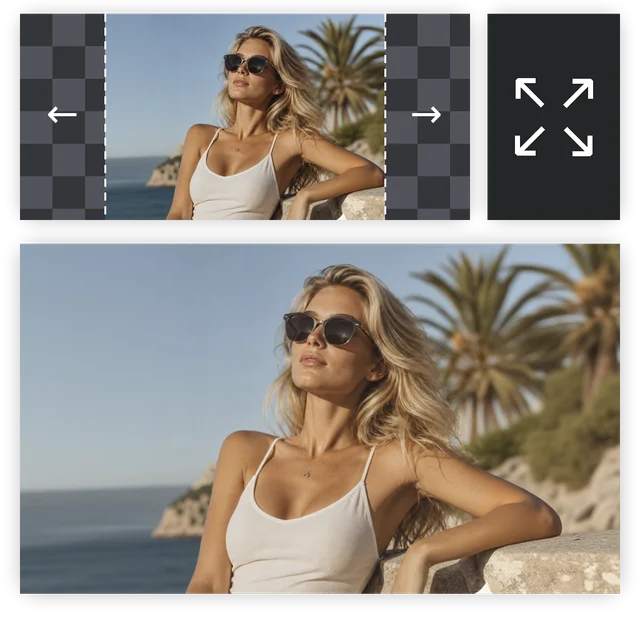
Expand Any Photo Beyond Its Borders — AI Image Expander, Photo Extender & Uncrop Tool
Upload a photo, set how much canvas to add, and let the AI fill in the rest. Restore cropped portraits, extend landscapes to widescreen, adapt images to any aspect ratio, or prepare a photo for print — without Photoshop.
Outpainting • Uncrop AI • Image stretcher • Photo extender
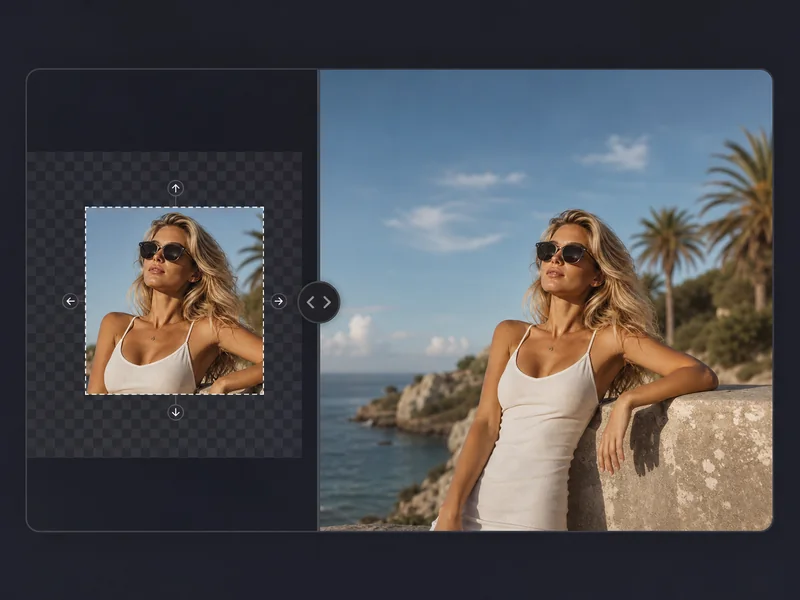
What Is an AI Image Expander?
An AI image expander uses outpainting technology to extend a photo beyond its original edges. Point it at any image — a portrait, landscape, or product shot — set how much canvas to add, and the AI image extender generates new background, sky, ground, or context that blends seamlessly with the original. Use it as a photo extender for panoramic output, an image stretcher to hit a target aspect ratio, or an uncrop AI tool to recover photos that were framed too tight.
How to Expand an Image in 3 Steps
Upload your photo, set the expansion direction and size, then let the AI image extender fill the new canvas.
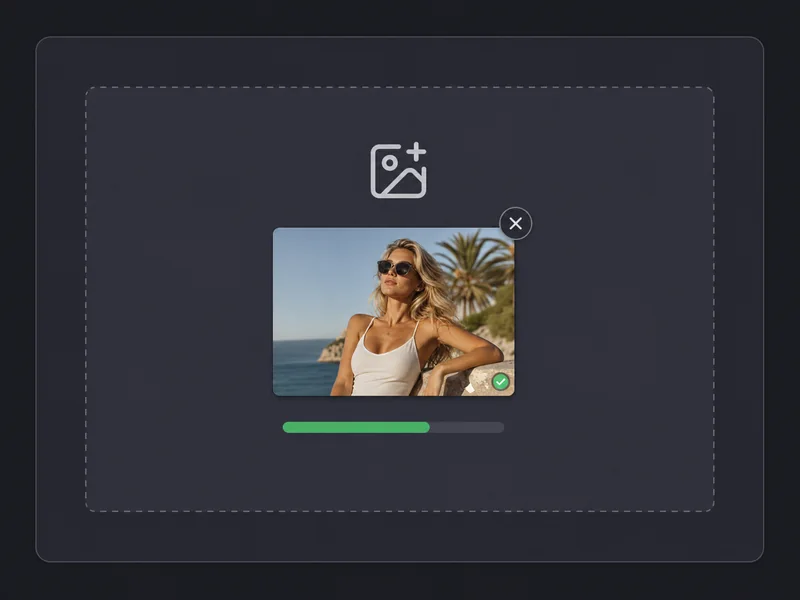
Upload Your Photo
Upload a JPG, PNG, or WEBP image. The AI image expander works with portraits, landscapes, product photos, and any photo you want to extend beyond its current frame.
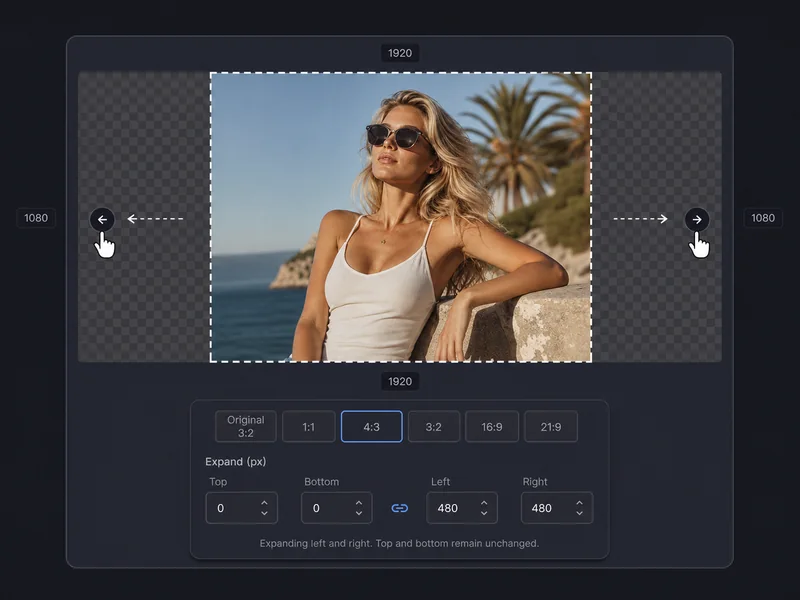
Set Expansion Direction & Size
Choose which sides to extend and by how much, or select a target aspect ratio. The photo extender mode lets you add custom canvas on any side. The image stretcher mode adapts the photo to 16:9, 9:16, 4:3, or square without distorting the original.
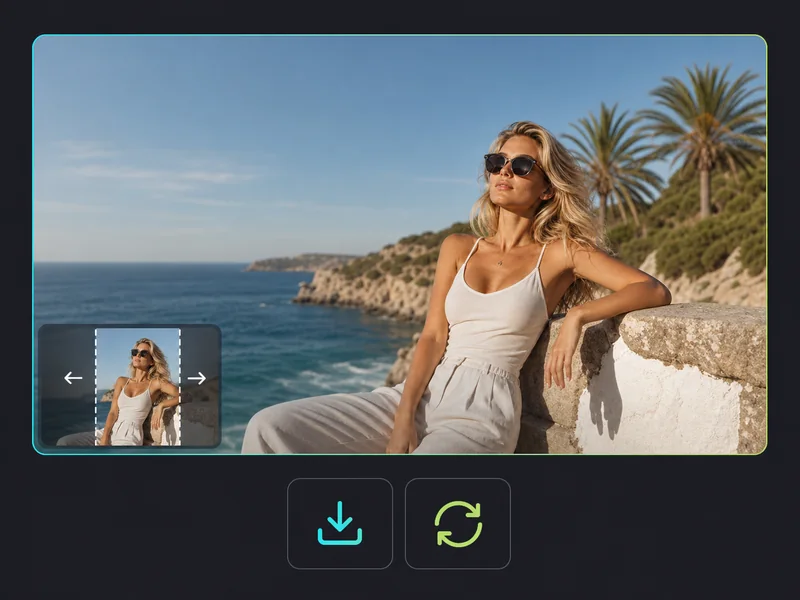
Generate & Download
The AI image extender fills the new canvas area with outpainted content that matches the original's colors, lighting, and texture. Download the expanded image as a high-quality PNG ready for print, social media, or web.
Explore AI Photo Extender for Every Scene
Whether you're recovering a cropped portrait, extending a landscape for a banner, or reformatting a photo for a new platform — here's what the tool handles well.
- Recover portraits where the subject's head or shoulders were clipped
- Restore group photos where someone at the edge got cut out
- Bring back the sky or foreground a tight crop removed from a landscape
- Fix old scanned photos with borders or missing edges
What Creators Say About AI Image Expander
Photographers use it to recover tight crops. Designers stretch images for banners and print layouts. Creators reformat a single photo for every platform at once.
The uncrop AI feature saves photos I thought were ruined. I had a wedding shot where the bride's dress was cut off at the bottom — the AI image expander restored the full gown seamlessly. Clients can't tell it was extended.

Emma Wilson, Portrait Photographer
Emma Wilson
Portrait Photographer
I shoot on a phone, so my landscape photos come out in portrait format. The photo extender converts them to 16:9 for my blog without cropping out anything important. The AI fills in sky and foreground that looks completely real.

Marcus Johnson, Travel Blogger
Marcus Johnson
Travel Blogger
I use the image stretcher every week to adapt photos from square to banner formats. The AI-generated extensions match the original photo so well that my clients never ask what tool I used.

Priya Sharma, Social Media Designer
Priya Sharma
Social Media Designer
Our product photos are shot square, but we need them in widescreen for homepage banners. The AI image extender adds background on both sides that matches the studio setup. It replaced a full reshooting workflow.

Thomas Bennett, Ecommerce Creative Director
Thomas Bennett
Ecommerce Creative Director
The image expander handles architecture photos better than I expected. I needed a building shot extended to fill a full-bleed double page spread — the AI extended the sky and street seamlessly at print resolution.

Clara Schneider, Graphic Designer
Clara Schneider
Graphic Designer
I use the uncrop AI and photo expander together to repurpose one photo for Instagram, YouTube thumbnails, and Twitter headers — all from the same original. Saves me at least an hour per post.

Kwame Mensah, Content Creator
Kwame Mensah
Content Creator
AI Image Expander FAQ
Everything you need to know about expanding, extending, and uncropping photos with AI.
An AI image expander is a tool that uses outpainting technology to extend a photo beyond its original borders. It generates new background, sky, ground, or context that blends with the existing image. It works as an image extender (adding canvas dimensions), a photo extender (expanding photographic content), an uncrop AI (recovering cropped areas), and an image stretcher (changing aspect ratio without distortion).
All three — image expander, image extender, and photo extender — describe the same AI outpainting function: adding canvas to a photo and filling the new area with AI-generated content. Image extender focuses on extending canvas dimensions. Photo extender emphasizes working with photographic content. Image expander is the broader term covering both. All three use the same AI to generate seamless extensions.
Uncrop AI reverses a crop by generating the missing areas using outpainting. Upload the cropped photo, set how much to restore on each side, and the AI reconstructs the missing content — a cut-off head, missing hands, or a cropped background — based on the existing image. The uncrop AI tool is especially useful for portraits, group shots, and landscapes where the original framing was too tight.
The image stretcher adds new canvas to the sides that need extending and fills it with AI-generated content, rather than stretching existing pixels. A portrait photo (4:5) converted to widescreen (16:9) gets new background added on the left and right — generated by AI to match the original scene — leaving the subject untouched and undistorted.
Yes. The AI image extender generates extensions at high resolution suitable for large-format print. Set your target canvas size in pixels, generate the extension, and download a PNG file. For best results with very large formats (billboard, poster), start with a high-resolution source image.
AI outpainting generates new content outside the edges of an existing image — extending it beyond its borders. Inpainting fills areas inside an image (removing objects, filling holes). The AI image expander and image extender use outpainting. It is the same technology behind Photoshop's Generative Expand, now available free in the browser without software installation.
Upload your image to the AI image expander and select the 16:9 aspect ratio or manually set the canvas width. The photo extender adds canvas on the left and right sides and fills them with AI-generated content matching your original scene. Download the result as a PNG ready for YouTube thumbnails, website banners, or presentation slides.
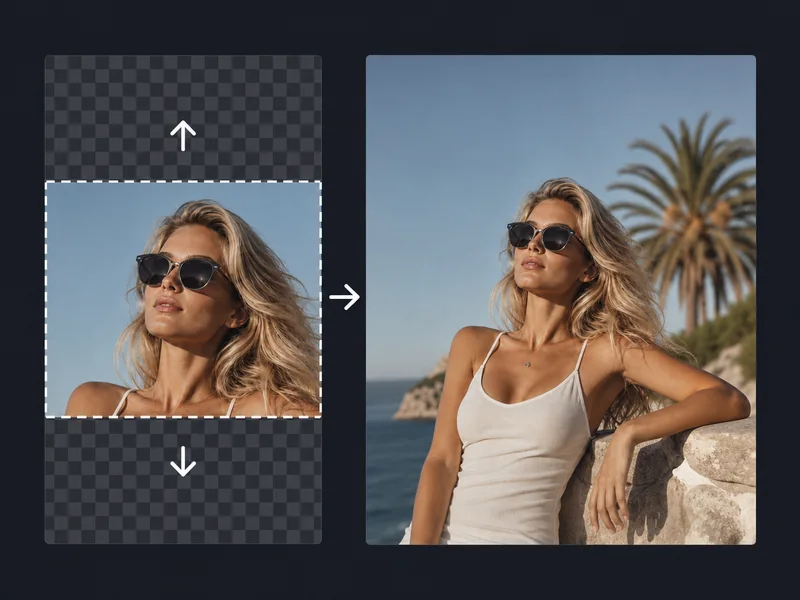
Yes. Set the expansion amount for the top, bottom, or both in the AI image extender. The tool generates content above and below the original photo — sky, ground, architectural detail, or background — that matches the existing image. This works well for converting landscape photos to portrait format for Instagram Stories or Pinterest.
Yes. Upload your photo, expand in any direction, and download the result. Free to use.
Upload JPG, PNG, or WEBP images. The AI image extender processes the photo and delivers a high-quality PNG download with the expanded canvas included.
In the AI image expander settings, set expansion amounts for all four sides — top, bottom, left, and right. The photo extender generates a single outpainting pass filling all added areas simultaneously with coherent AI content that matches the original image from every direction.
Both use AI outpainting to extend images beyond their borders. This AI image expander runs entirely in your browser — no software installation, no Creative Cloud subscription, and no cost. Upload, expand, and download in seconds without leaving your browser.
Expand Your Photo Now — Free AI Image Expander
Your photo, extended exactly the way you need it.