






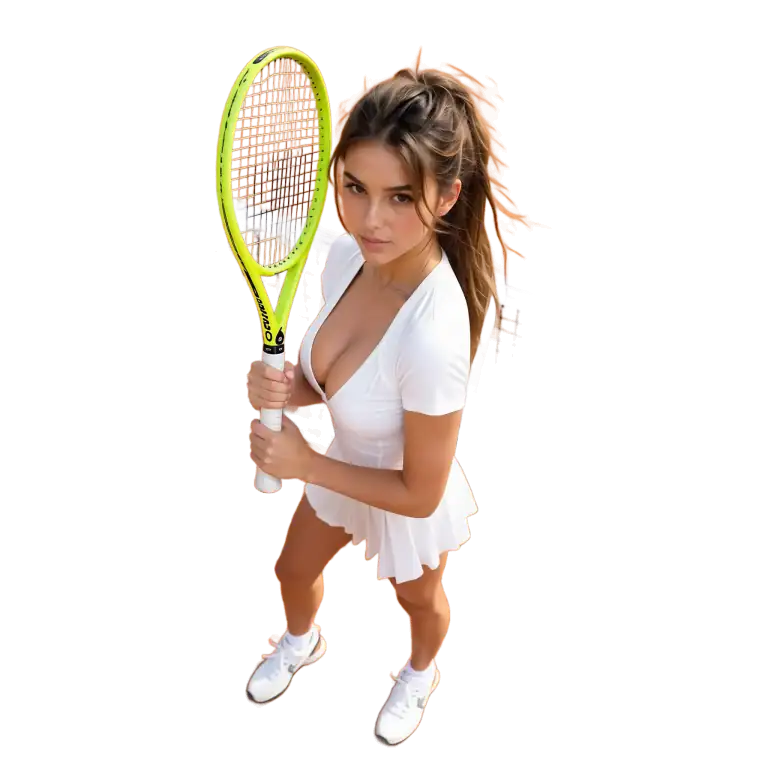
Transparent PNG cutout for designs, stickers, and product photos.
Free AI Image Background Remover - Remove Background from Photo Online
Remove background from image uploads and create a clean photo in seconds. Make transparent cutouts, white product photos, blur previews, and mask outputs without manual tracing.
AI-powered background removal • High-quality cutouts • Fast product photo cleanup
What Is an AI Background Remover?
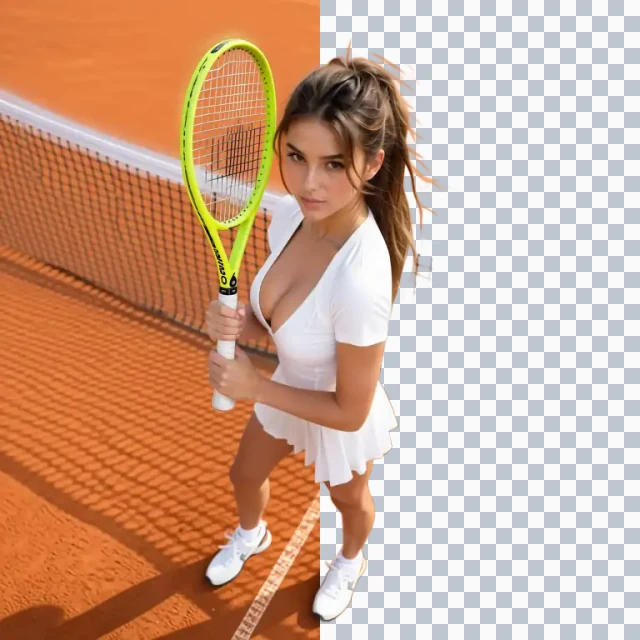
An AI background remover detects the subject in a photo, removes the surrounding scene, and returns a clean PNG for design or commerce. Use it to create transparent cutouts, white product photos, green screen assets, blur previews, overlay checks, or mask outputs without manual tracing.
How to Remove Background from Image in Three Steps
Upload your photo, choose the background style, then generate and download a PNG that is ready for your next project.
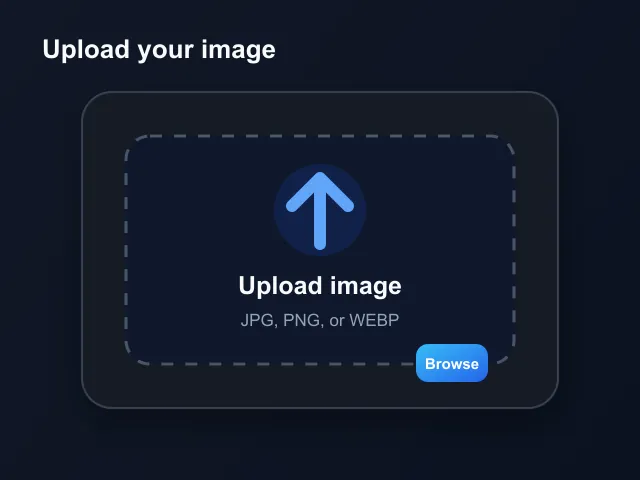
Upload a JPG, PNG, or WEBP
Start with a product photo, portrait, profile image, screenshot, or creative asset. The AI background remover works online, so you can prepare files without opening a complex editor.
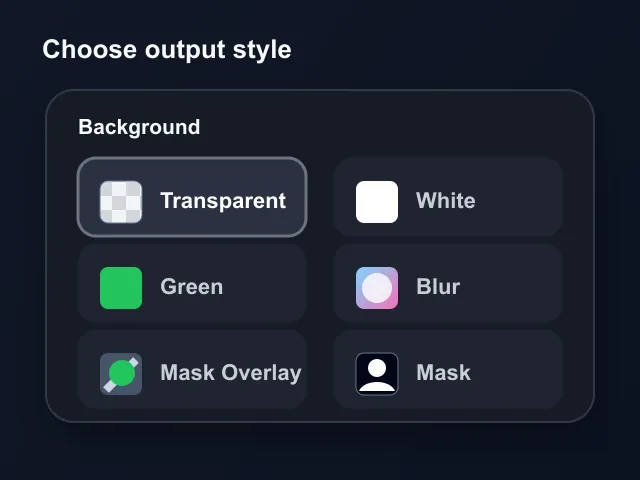
Pick the background output
Choose transparent, white, green, blur, overlay, or mask. This lets you remove background from image uploads and create the right output for stores, ads, thumbnails, or QA.
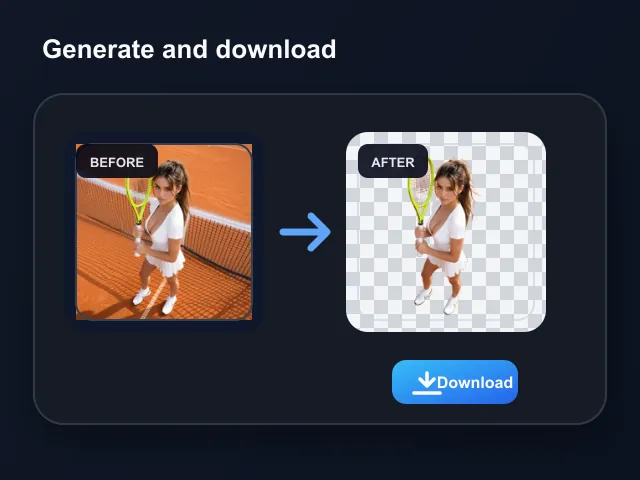
Generate and download
The background remover separates the subject from the scene, then exports a clean PNG you can place into product pages, social posts, presentations, or design tools.
What Can You Use an AI Background Remover For?
Remove slow manual cutout work from the image tasks creators, sellers, and marketers repeat every week.
- Remove background from image uploads instead of tracing product edges by hand
- Create white background product photos for catalogs, marketplaces, and landing pages
- Keep product images consistent when suppliers send photos with mixed lighting or scenes
- Prepare transparent PNG assets for banners, bundles, comparison graphics, and ads
Loved by Creators Who Remove Backgrounds Every Day
Teams use Makify AI to turn rough uploads into clean, reusable visuals for stores, social content, ads, and presentations.
The AI background remover gives us consistent white product photos without sending every image to a designer. It is fast enough for daily catalog updates.

Emma Wilson, Ecommerce Manager
Emma Wilson
Ecommerce Manager
I use the transparent PNG output when building ad variations. The background remover keeps the subject reusable across layouts, which saves a lot of repetitive cleanup.

Marcus Johnson, Creative Director
Marcus Johnson
Creative Director
For profile images, thumbnails, and campaign posts, being able to remove background from image uploads in one place keeps our content calendar moving.

Sofia Martinez, Social Media Lead
Sofia Martinez
Social Media Lead
The white background option is exactly what I need for listing photos. I can upload, clean the image, and download a PNG without learning a full editing suite.

Daniel Kim, Marketplace Seller
Daniel Kim
Marketplace Seller
Mask output is useful when I want to check edge quality before placing the subject into a bigger composition.

Priya Sharma, Brand Designer
Priya Sharma
Brand Designer
The background remover helps us prepare creative tests quickly. Transparent, blur, and green screen outputs cover most of our publishing needs.

Jason Lin, Growth Marketer
Jason Lin
Growth Marketer
AI Background Remover FAQ
Answers for common questions about how to remove background from image files, output types, product photos, and quality.
An AI background remover detects the main subject in a photo and removes the surrounding scene. The result can be a transparent PNG, white background, green screen, blur preview, overlay, or mask output.
You can upload common image formats such as JPG, PNG, and WEBP. After the background remover finishes processing, download the result as a PNG for easy reuse in design tools, stores, and social posts.
Yes. It is useful for creating clean product photos, transparent cutouts, white background catalog images, marketplace visuals, ads, and landing page assets.
Upload your image, choose the background output, and run the AI background remover. The tool detects the subject, removes the background, and gives you a clean result to download.
Yes. The AI background remover can handle headshots and fine edges such as curly hair, though very busy backgrounds or low-resolution photos may still need a quick review.
Blur is useful when you want to soften the original scene. Overlay helps review the detected subject area, and mask output shows the cutout as a black and white segmentation check.
Upload the image with a white background and choose transparent or another background style. The background remover separates the subject from the white area so you can reuse it in a cleaner layout.
Start with the highest-resolution image you have and avoid heavily blurred uploads. The AI background remover is designed to keep subject edges clean, but source image quality still matters.
Upload a JPG, PNG, or WEBP file, remove the background, and download the processed result as a PNG. PNG output is useful for transparent cutouts and design assets.
Upload the logo image and choose transparent output. This helps create a reusable logo cutout for websites, slides, brand kits, product photos, and marketing graphics.
A checkered background usually represents transparency in image editors. If the checkerboard is baked into the image, upload it and use the background remover to isolate the subject again.
Upload the PNG image, select the background type, and generate the result. You can remove the existing background and export a cleaner PNG for ecommerce, social, or design work.
Remove Your Image Background Now
Turn messy photos into clean, ready-to-use visuals in seconds.