You read the Images 2.6 announcement, opened ChatGPT, and could not find an SVG button. Then you opened the API docs and could not find the saved-reference feature everyone was posting about. Neither one is missing. GPT Image 2.6 spreads its new features across several surfaces, and each surface gets a different subset. This guide puts them all in one place: what each feature does, where it lives, every setting you can change, and how to prompt it.
Everything below was checked against OpenAI's announcement, model pages, image generation guide and API reference as of November 5, 2026, one day after release. Settings for this site come from the current GPT Image 2.6 generator. Where OpenAI has not published a detail, this guide says so instead of guessing.
What shipped on November 4, 2026
OpenAI released Images 2.6 on November 4, 2026. It reached ChatGPT and Codex on every plan, including Free, on web, desktop and mobile, and it came to the API as two models. The naming changes depending on where you look, so here is the map:
Where you see it
Name used
What it actually is
ChatGPT and Codex
ChatGPT Images 2.6 / Images 2.6
The 2.6 generation inside the chat apps
API, fast model
gpt-image-2.6-flare
Speed-tuned model for drafts and everyday generation
API, precision model
gpt-image-2.6-sunburst
Detail- and consistency-tuned model for finals
This site
GPT Image 2.6, with a Flare / Sunburst mode switch
Both API models in one browser tool
OpenAI says 2.6 generates images 50% faster than before. Flare can return a low-quality image in as little as about six seconds, and Sunburst brings higher quality and stronger consistency across edits at medium and high quality. Flare and Sunburst are not new names: they first appeared with GPT Image 2.5 in September. Version 2.6 keeps that split and adds new output types and controls.
One thing to keep in mind. ChatGPT has no documented Flare/Sunburst selector, so you cannot choose which variant handles a ChatGPT request. The API and this site both let you pick explicitly.
About 50% faster per OpenAI; Flare low quality from ~6 seconds
Animated GIF
No
Yes, from a prompt or a still image
SVG vector output
No
Yes, on the API generations endpoint
Markup-guided edits
ChatGPT editing tools
ChatGPT, plus a markup field on the API edits endpoint
Planning control
Tied to quality
New complexity setting (low / medium / high), default high
Saved references
Upload every time
ChatGPT can save a reference photo and recall it with @name
API token prices
$8 image in / $30 image out / $5 text in per 1M
Unchanged
Batch API
Supported
Not supported for 2.6 models
Complexity is new, and it is not quality. OpenAI's guide says complexity "controls how much the image model plans before rendering," while quality controls rendering detail. Lower complexity suits focused edits such as a background swap. Higher complexity helps with dense text, complex layouts and object relationships. Both 2.6 models default to high, and OpenAI notes that higher complexity can add latency and introduce unwanted changes.
Where you can use GPT Image 2.6, feature by feature
This is the table most launch coverage leaves out. Each surface gets a different set of 2.6 features:
Feature
ChatGPT
Codex
OpenAI API
This site
Text to image (PNG)
Yes
Yes
Yes
Yes
Image editing with references
Yes
Yes
Yes (/v1/images/edits)
Yes, up to 16 references
Animated GIF
Yes, speed control and per-frame edits
Yes
Yes, generations endpoint only
Yes, 4/8/12 frames, 3 speeds
SVG vector output
Not documented
Not documented
Yes, generations endpoint only
Yes, Text to Image
Pick Flare or Sunburst
No
No
Yes
Yes, one-click mode switch
Resolution choice
Not documented
Not documented
Via size
1K, 2K or 4K
Quality levels
Not documented
Not documented
low to max, plus auto
Low, medium, high
Outputs per run
Not documented
Not documented
Via n
1 to 4 PNGs
Transparent background
Not documented
Not documented
background parameter
Auto / transparent / opaque switch
Markup (draw on the photo)
Yes
—
Yes, markup on edits
No
Saved reference library (@name)
Yes
—
No
No
Complexity control
No
No
Yes
Fixed at high
Same prompt on other models
No
No
OpenAI models only
Yes, switch to Nano Banana, Seedream and more
What you need
ChatGPT account
ChatGPT account
API key, billing and code
A browser; no API key or ChatGPT plan
Which surface fits you
ChatGPT is the right place if you want saved characters you can recall by name, quick conversational GIFs with frame-level fixes, or the ability to circle part of a photo with markup. OpenAI does not document a Flare/Sunburst choice, a resolution setting or SVG output there.
The OpenAI API fits developers building a product who need complexity control, xhigh and max quality, automation, or markup inside their own app. You need an API key, billing setup, and code to decode the base64 response.
This site is built for people who want the API-level controls without the API work. You get both Flare and Sunburst behind one switch, PNG, GIF and SVG from the same page, a resolution picker up to 4K, up to 16 reference images, 1 to 4 outputs per run, and a transparent-background toggle, all in the browser with no API key and no ChatGPT subscription. When 2.6 is not the right fit for a job, you can rerun the same prompt on GPT Image 2.5, Nano Banana Pro or Seedream 5.0 Pro without copying it anywhere. The honest trade-offs: no markup, no saved @name library, no complexity setting, and no xhigh or max quality.
Flare, Sunburst, GIF and SVG in one browser tab. No API key, no ChatGPT plan.
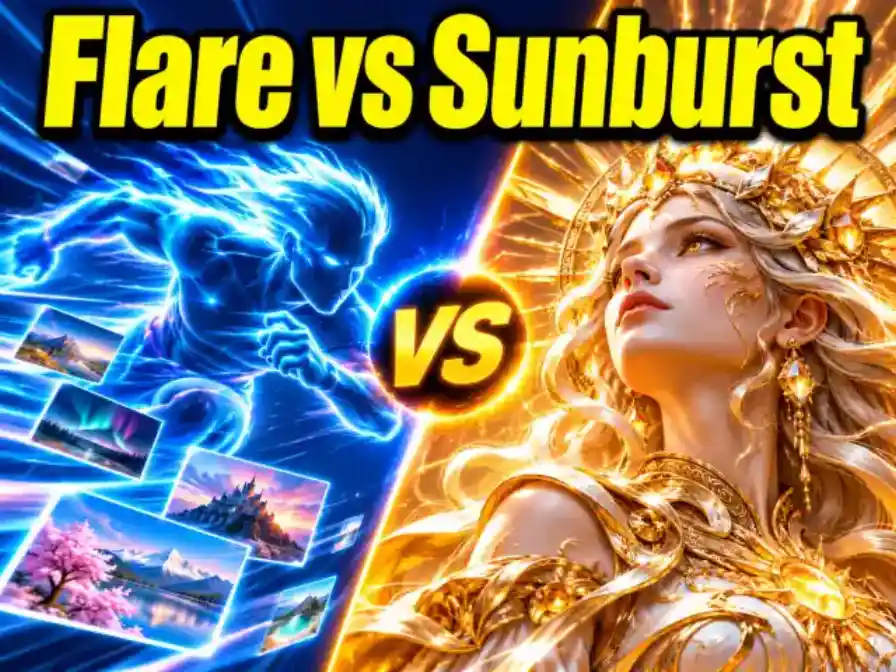
Flare is the fast mode. Use it to explore compositions, test prompts and make everyday images. Sunburst is the precision mode. Use it for finals and for edits that need to keep a face, product or logo stable. In short: explore on Flare, finish on Sunburst. For a full breakdown of which jobs suit which mode, read GPT Image 2.6 Flare vs Sunburst.
Output format: PNG, GIF or SVG
Text to Image outputs PNG, GIF or SVG.
Image to Image (editing) outputs PNG or GIF. It cannot produce SVG from an uploaded image.
Aspect ratio and resolution
Eleven ratios are available: 1:1, 9:21, 9:16, 2:3, 3:4, 4:5, 5:4, 4:3, 3:2, 16:9 and 21:9. Edit mode also has auto, which keeps the shape of your input image. When you already know where the image will go, a fixed ratio gives you a predictable output size. Resolution options are 1K, 2K and 4K: 1K for drafts, 2K for social and web, 4K for print, hero banners and anything you will crop later.
Quality
Low, medium (the default) and high. Low is enough to judge framing and layout. Medium suits most finished social images. High is worth it for small text, product texture and faces. The OpenAI API also offers xhigh and max for 2.6, but this site does not expose them.
Outputs per run
You can request 1 to 4 PNGs per run. Four outputs are useful when you are choosing between compositions; one is enough once the prompt is locked. SVG always returns one file per request.
Background
Auto, transparent or opaque. Use transparent for stickers, product cutouts and UI overlays. This setting does not apply to SVG.
Reference images
Image to Image accepts up to 16 references, as JPG, PNG or WEBP, up to 10MB each.
Prompt length
Up to 32,000 characters, the same limit as the API.
GIF and SVG in brief
GIFs. Choose 4, 8 or 12 frames and a speed of fast (100ms per frame), medium (200ms) or slow (400ms). GIF ratios are 1:1, 16:9, 9:16, 4:3 and 3:4. The non-obvious part is that frame count and frame size compete for the same budget. A whole request is capped at 8,294,400 pixels, and each frame needs at least 655,360. Twelve frames at the minimum already use 7,864,320 pixels, so a 12-frame GIF is close to the floor: on this site a square 12-frame GIF comes out at 816×816 per frame, while 4 and 8 frames get 1024×1024 and 1008×1008 (frames are capped at 1024×1024 here). If you need sharp detail, use fewer frames. If you need smooth motion, accept smaller frames. Prompting for loops, motion verbs and the stills-versus-GIF problem is covered in how to make GIFs with GPT Image 2.6.
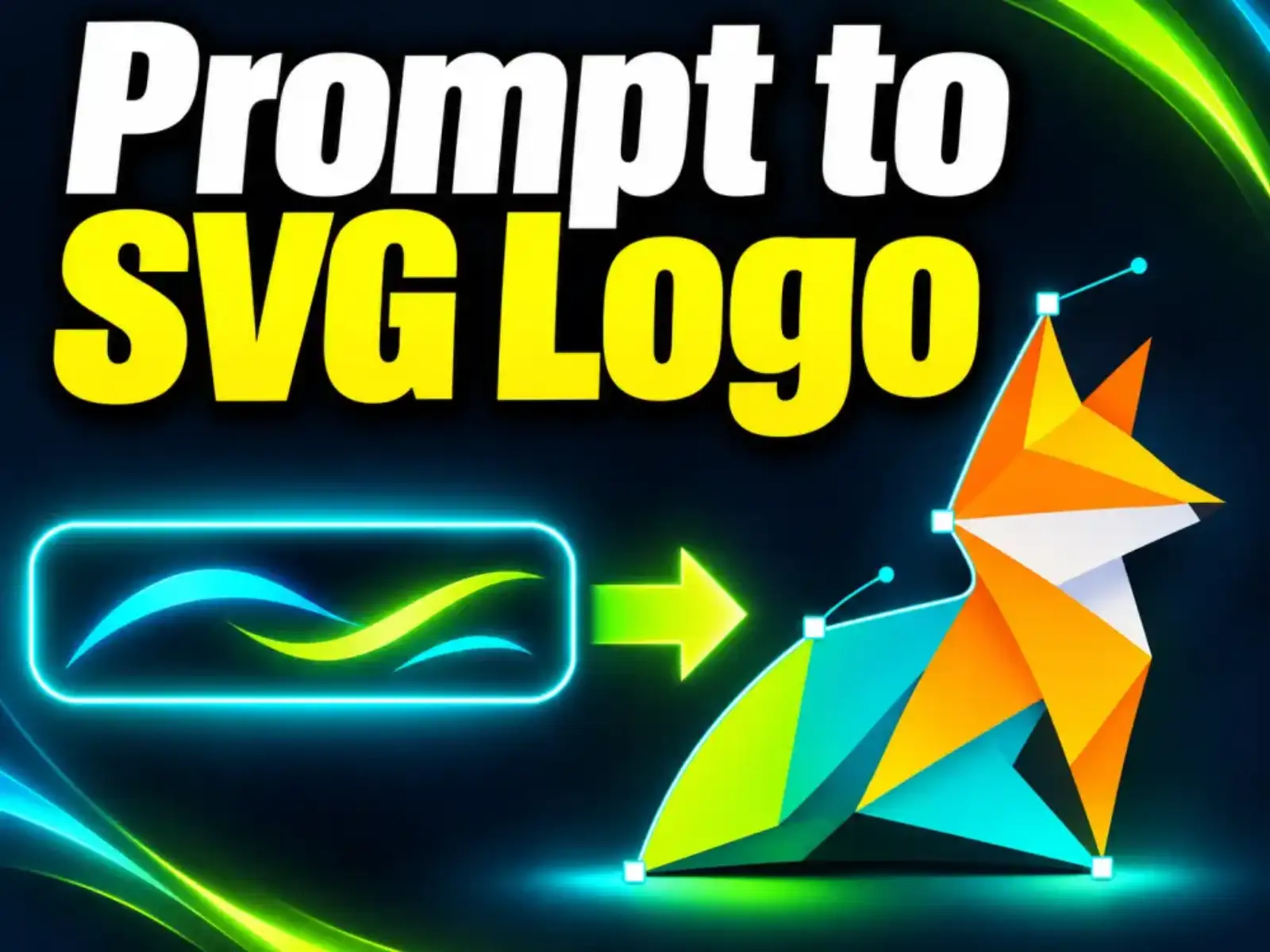
SVG. SVG works in Text to Image only. You get one static vector file per request. On OpenAI's side, the API renders a reference image first and then a separate authoring model writes the vector paths. The quality setting controls that reference image. The resulting document has no scripts, external resources or embedded raster images. SVG gives the best results with logos, icons, badges and flat illustration: few colors, clean edges and no photographic texture. If you already have a PNG you like, the image to SVG converter can vectorize it instead of regenerating it.
How to prompt GPT Image 2.6
OpenAI's prompting guide recommends describing the image in a consistent order. The pattern below follows it and gives each part one job:
Subject → Setting → Style → Light → Exact text in quotes → Constraints
Subject: who or what, with the details that matter (material, age, color, pose).
Setting: where it is and what surrounds it.
Style: photo, flat vector, watercolor, 3D render, plus a camera or lens if it is a photo.
Light: direction and mood. This one line changes the image more than most people expect.
Exact text: any words that must appear, inside double quotes, with position and typeface.
Constraints: what must not happen, such as "no extra text," "plain white background" or "centered, generous margins."
Text without quotes is read as a description the model may paraphrase. Text inside quotes is read as copy to render exactly.
Copyable prompts
Product shot (PNG, Flare 2K medium):
A matte sage-green ceramic coffee mug with a thin gold rim, three-quarter view.
Setting: a light oak table by a window, a folded linen napkin beside it.
Style: commercial product photography, 85mm lens, shallow depth of field.
Light: soft morning daylight from the left, gentle shadow to the right.
Text: the word "MORNING" in small serif capitals printed on the mug.
Constraints: no other objects in focus, no extra text, 4:5 crop with space above the mug.
Event poster (PNG, Sunburst 2K high):
A vertical poster for a jazz night.
Subject: a saxophonist silhouette in mid-solo, bell of the horn catching light.
Setting: abstract smoky club interior in deep navy and amber.
Style: 1960s screen-print, limited four-color palette, visible paper grain.
Light: one warm spotlight from above.
Text: headline "BLUE HOUR SESSIONS" at the top in bold condensed sans-serif;
"FRIDAY 9 PM · ROOM 42" at the bottom in smaller type.
Constraints: no other text, keep all lettering inside a 5% margin.
Logo for SVG (Text to Image, Flare 1K medium):
A flat vector logo mark for a bakery called "Field & Flour".
Subject: a single wheat stalk curving into the shape of a croissant.
Style: geometric, two colors only (warm ochre and charcoal), uniform stroke weight.
Text: "FIELD & FLOUR" in clean rounded sans-serif centered below the mark.
Constraints: no gradients, no shadows, no texture, plain transparent background.
Looping GIF (Flare, 8 frames, medium):
A small paper boat bobbing on gentle blue water, side view.
Style: soft flat illustration with pastel colors.
Motion: the boat rises and falls slowly while ripples spread outward.
Loop: the last frame returns smoothly to the first. Same boat, same framing in every frame.
Constraints: no text, camera does not move.
You can find more starting points in the prompt library. Paste them in and adjust the subject.
Multi-round editing that holds
Most bad edits come from the instruction, not the model. Three habits prevent them.
1. Change one thing per round. "Make the jacket red and move her to a beach and add sunglasses" asks the model to re-plan most of the image. Split it into three rounds. Each round is easier to redo if it goes wrong, and you can see which instruction caused a problem.
2. List what must stay the same, every round. The pattern from OpenAI's guide is "change only X; keep Y." Name the specifics: face, pose, hairstyle, camera angle, lighting direction, background, color grade, logo placement. Restate the list in every round, not only the first.
Change only the jacket color to deep burgundy wool.
Keep exactly the same: her face, expression, hairstyle, pose, the street background,
the camera angle, the late-afternoon light from the right, and the image framing.
3. Use Sunburst for the rounds that need consistency. OpenAI positions Sunburst as the model with greater consistency across edits at medium and high quality. A practical split is to find the composition on Flare, then run identity-sensitive edits (faces, packaging, brand marks) on Sunburst.
Locating a change without markup. This site does not offer draw-on-photo markup. You can get close by describing the location in words: "the vase on the left shelf," "the sign above the door," "the bottom-right corner." Pair that with a full keep-list. In ChatGPT or the API, markup lets you circle the area instead. OpenAI's guide still recommends describing the change in the prompt, because a drawn mark alone is not enough.
Give every reference a role. Say what each upload is for in the prompt ("image 1 is the product, image 2 is the lighting reference") rather than uploading eight and hoping the model works it out. Four well-labeled references usually guide the model better than sixteen unlabeled ones.
API notes for developers
If you call OpenAI directly, these are the facts that matter as of November 5, 2026:
Model IDs:gpt-image-2.6-flare and gpt-image-2.6-sunburst. Each model page lists a single alias with no dated snapshot yet.
Endpoints:POST /v1/images/generations and POST /v1/images/edits. The model pages mark Responses, Chat Completions and Batch as not supported.
Pricing: the same token rates as 2.5. Image input is $8, image output $30 and text input $5 per 1M tokens. Same price per token does not mean same price per image, because token counts vary by model, quality and complexity, and the high complexity default can raise token use.
Complexity:low, medium or high. If you omit it, the model uses high. Set it to low for simple edits to cut planning overhead and latency.
Quality:low, medium, high, xhigh, max or auto.
SVG:output_format: "svg" with n: 1, generations only. You pay for the reference image plus the authoring model's tokens.
GIF:output_format: "gif" with frame_count and frame_duration_ms, generations only. The API reference says GIF requires access to the GIF preview for the selected model, and the guide and reference currently list different frame-count maximums, so check your account before relying on large frame counts.
Markup: send a transparent PNG with the same dimensions as the first input image as markup on the edits endpoint. You cannot combine it with mask.
A minimal generation call:
curl https://api.openai.com/v1/images/generations \
  -H "Content-Type: application/json" \
  -H "Authorization: Bearer $OPENAI_API_KEY" \
  -d '{
    "model": "gpt-image-2.6-flare",
    "prompt": "A matte sage-green ceramic mug on a light oak table, soft morning light from the left, product photography",
    "size": "1024x1024",
    "quality": "low",
    "complexity": "low",
    "n": 1,
    "output_format": "png"
  }' | jq -r '.data[0].b64_json' | base64 --decode > mug.png
GPT image models always return base64, not URLs, so the response has to be decoded. To switch the same call to an SVG logo, set "output_format": "svg", keep "n": 1, and save the decoded bytes with a .svg extension.
A draft-to-final quality workflow
Here is how the habits above fit together:
Find the composition on Flare at 1K, low quality. Run the prompt three or four times, or ask for 4 outputs at once. You are checking framing and layout here, not detail.
Fix the prompt, not the settings. If the composition is wrong at low quality, it will be wrong at high quality too.
Lock the prompt once a draft has the layout you want, and stop rewording it.
Render the final on Sunburst at 2K or 4K, at high quality for hero images, print and anything with small text. Flare at 2K medium is often enough for a social post.
Edit in single-change rounds with a keep-list, and pick a fixed aspect ratio so every round comes back the same size.
Use as few GIF frames as the motion allows, so each frame keeps more detail.
Vectorize instead of regenerating when you already have a raster logo you like.
Run the workflow: Flare drafts, Sunburst finals
Switch modes, formats and resolution on one page. Start from a library prompt if you want a head start.
Where can I use GPT Image 2.6?
In ChatGPT and Codex on every plan, including Free; in the OpenAI API as gpt-image-2.6-flare and gpt-image-2.6-sunburst; and in browser tools built on the API, such as the GPT Image 2.6 generator on this site, which adds a Flare/Sunburst switch, PNG, GIF and SVG output and resolution up to 4K without an API key.
What is the difference between GPT Image 2.6 Flare and Sunburst?
Flare is tuned for speed and can return a low-quality image in about six seconds, per OpenAI. Sunburst is tuned for higher quality and stronger consistency across edits at medium and high quality. Both share the same API token prices. The detailed comparison is in Flare vs Sunburst.
How do I make a GIF with GPT Image 2.6?
In ChatGPT, ask for a looping GIF or upload a still and ask ChatGPT to animate it, then adjust speed or edit individual frames. In the API, set output_format to gif on the generations endpoint. On this site, pick GIF as the output, choose 4, 8 or 12 frames and a speed, and describe the motion and the loop in the prompt.
Can GPT Image 2.6 make SVG files?
Yes. OpenAI documents SVG as an API output on the generations endpoint, one static file per request, with no SVG edits. ChatGPT does not document an SVG option. This site offers SVG in Text to Image, and it works best for logos, icons and flat illustrations.
Is GPT Image 2.6 more expensive than 2.5 in the API?
Token prices are unchanged from 2.5. Per-image cost can still differ, because complexity defaults to high and token use depends on model, quality and complexity. The 2.6 models are not available on the Batch API.
Can I choose Flare or Sunburst in ChatGPT?
OpenAI does not document a variant selector in ChatGPT. If you need a specific model, call it by ID in the API or use the mode switch on the GPT Image 2.6 tool page.
How do saved reference images work in ChatGPT?
Upload a photo, ask ChatGPT to save it as a reference, and give it a name. In later chats, type @ followed by that name, for example "a watercolor portrait of @Pepper." This feature is ChatGPT-only. In the API and on this site, you attach references to each request instead.
Open the GPT Image 2.6 generator, set it to Flare at 1K low, and run one prompt from this guide four times before you change anything else.
Sources
Image generation guide — OpenAI API docs — the GPT Image 2.6 section: complexity levels and the high default, markup-guided edits, SVG output rules, GIF fields, and 2.6 cost notes.
Image prompting — OpenAI API docs — the prompt structure, quoted-text guidance, "change only X, keep Y" edits, and Flare/Sunburst migration advice.
Create image — OpenAI API reference — the model, complexity, frame_count, output_format, quality and background parameters, and the 32,000-character prompt limit.
GPT-Image-2.6 Flare model page — OpenAI — model ID, token pricing, and endpoint support (generations and edits supported; Batch and Responses not supported).
Images in ChatGPT — OpenAI Help Center — how to make GIFs in ChatGPT, adjust playback speed, and save and recall references with @name. This page blocks non-browser requests; its content was confirmed through search indexing.