You saw the demo: someone types "can you make a gif of a cat dancing?" into ChatGPT and gets a looping animation back in one step. Then you try it for your own brand mascot, or a product shot that should spin, and the questions start. How many frames is that? How long does the loop last? Why is the GIF smaller than the stills you usually make? And do you need a ChatGPT plan at all?
You don't. This guide covers what OpenAI shipped on November 4, 2026, the two ways to make a GPT Image 2.6 GIF today, which settings to pick for each kind of GIF, and the trade-off most tutorials skip: every extra frame makes each frame smaller. Settings and frame sizes below come from this site's GPT Image 2.6 tool as of November 5, 2026; release facts come from OpenAI's announcement and The Verge's same-day coverage.
What GPT Image 2.6 GIF output actually is
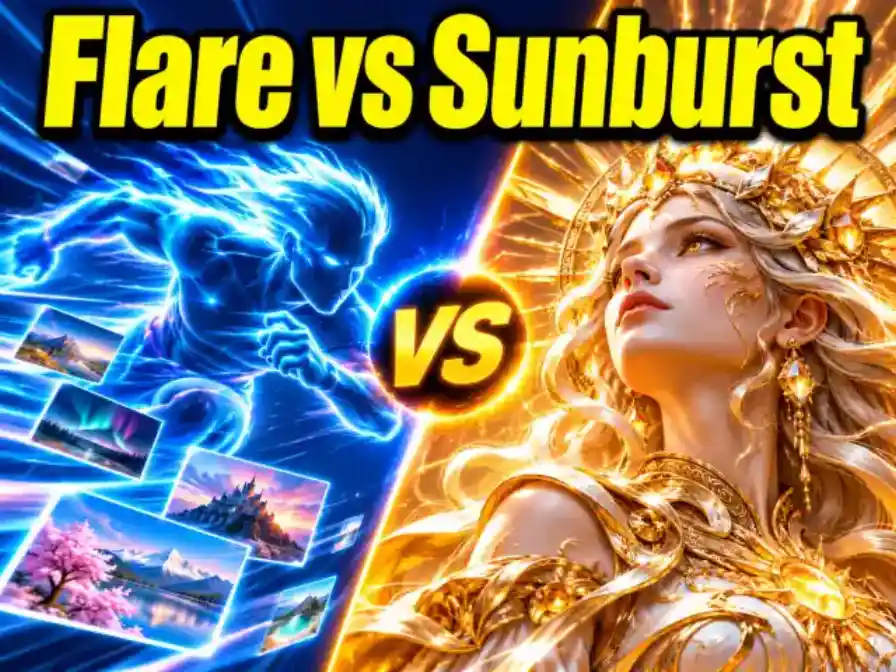
OpenAI released Images 2.6 on November 4, 2026 in ChatGPT and Codex on all tiers, plus two API models: gpt-image-2.6-flare and gpt-image-2.6-sunburst. Animated GIFs are the headline consumer feature. OpenAI pitches them for animating a brand mascot, turning a product shot into a loop, making reactions and memes, and building animated storyboards before video production. It also shows a pen sketch of an owl becoming an animated character.
Three things make this different from older "AI GIF" workflows:
It is one step. The Verge reports that before this update ChatGPT could not natively generate a GIF in a single step; you stitched frames yourself.
The model plans the motion. You describe a sequence and the model produces the in-between frames as one coherent set.
It shares the 2.6 consistency work. OpenAI positions 2.6 around keeping characters, products and brand details consistent across edits, which is exactly what a GIF needs across frames.
On the API side, OpenAI lists GIF as an output of the 2.6 image models. That is why you are not locked into ChatGPT: tools built on the API, including this site, can return a finished animated file rather than a sheet of stills.
Two ways to make a GPT Image 2.6 GIF
ChatGPT
This site's GPT Image 2.6 tool
What you need
A ChatGPT account (all tiers per OpenAI)
An account on this site; no ChatGPT plan, no OpenAI API key
Model choice
ChatGPT picks the variant for you
You pick Flare or Sunburst
Frame count
Decided in the conversation
4, 8 or 12, set before you generate
Speed
Adjustable playback speed after generation
Fast (100 ms), medium (200 ms) or slow (400 ms) per frame, set before you generate
Per-frame editing
Yes, edit individual frames
No; you re-run with an adjusted prompt
Aspect ratio
Described in the prompt
1:1, 16:9, 9:16, 4:3, 3:4 presets
Input
Text or an uploaded photo
Text to GIF, or photo to GIF with up to 16 reference images
Same subject on other models
No
Switch to GPT Image 2.5, Nano Banana Pro or Seedream 5.0 Pro for matching stills
The short version: ChatGPT wins when you want to fix one bad frame after the fact or change the speed on a finished file. This site wins when you want to control the model variant, frame count, aspect ratio and timing up front, feed in several reference photos, and keep a ChatGPT subscription and API keys out of the loop entirely.
Step-by-step: make a GPT Image 2.6 GIF on this site
The flow is six decisions. Make them in this order, because each one constrains the next.
Step 1: Open the tool and pick text or photo
Go to the GPT Image 2.6 generator. Choose Text to Image if you are describing the animation from scratch, or Image to Image if you are animating an existing photo, logo, mascot or sketch. Image to Image accepts up to 16 reference images (JPG, PNG or WEBP, up to 10 MB each).
Step 2: Set the output to GIF
Change the output format from PNG to GIF. The frame-count and speed options appear once GIF is selected. SVG is also offered in Text to Image, but it is a still vector, not an animation.
Step 3: Choose Flare or Sunburst
Flare is the fast variant. OpenAI says it can finish a low-quality image in as little as six seconds. Use it to find a prompt that loops cleanly.
Sunburst is the precision variant. OpenAI says it brings higher quality and greater consistency across edits at medium or high quality. Use it when the same face, logo or product has to survive every frame.
Pick 4, 8 or 12 frames, then fast, medium or slow. Treat these as one decision, because together they set the loop length. A good first attempt is 8 frames at medium: a 1.6-second loop with near-full-size frames.
Step 5: Choose the aspect ratio
GIF output supports five ratios: 1:1, 16:9, 9:16, 4:3 and 3:4. Square suits stickers, avatars and chat reactions. 9:16 suits stories and vertical feeds. 16:9 suits website banners and slide decks.
Step 6: Set quality and generate
Quality runs low, medium (the default) or high. Use low or medium while you test the motion. Once a loop works, re-run the same prompt at high, or on Sunburst, for the final file.
Set the output to GIF and run your first loop in the browser. No ChatGPT plan or API key needed.
Most people arrive with a specific GIF in mind, not a blank canvas. Find your row, copy the settings, then adjust from there.
GIF you want
Mode
Variant
Frames
Speed
Ratio
Loop length
Chat reaction (shake, shock, laugh)
Text to Image
Flare
4
Fast
1:1
0.4 s
Expression sticker (distinct beats)
Text to Image
Flare
4
Slow
1:1
1.6 s
Mascot wave or hop
Text, or Image to Image with your mascot
Sunburst for the final
8
Medium
1:1
1.6 s
Logo animation (pulse, shine, bounce)
Image to Image with the logo file
Sunburst
8
Medium
1:1 or 16:9
1.6 s
Product spin / turntable
Image to Image with product photos
Sunburst
12
Medium
1:1
2.4 s
Product shown from four angles
Image to Image with product photos
Sunburst
4
Slow
1:1 or 4:3
1.6 s
Blinking or smiling portrait
Image to Image with one portrait
Sunburst
8
Medium
3:4
1.6 s
Story or vertical-feed loop
Text to Image
Flare to test, Sunburst to finish
8
Medium
9:16
1.6 s
Website banner or slide loop
Text to Image
Flare or Sunburst
12
Slow
16:9
4.8 s
The pattern behind the table: use Sunburst when identity matters (logos, mascots, faces, products); stay at 4 or 8 frames for fine detail like label text; use 12 frames for continuous motion like a spin; use slow when each beat, such as one of four angles, needs to register.
Photo to GIF with reference images
Image to Image is where this tool differs most from a single-photo upload. You can attach up to 16 references, and how you use them decides whether the subject survives every frame.
One clean reference beats five similar ones. For a portrait or mascot, a single sharp, well-lit image with the subject large in frame gives the model one unambiguous target. Several near-duplicates add noise, not information.
Use multiple references for different views. For a product spin, upload front, side and back shots. The model then has real data for the angles it has to show instead of inventing the back of your bottle.
Plain backgrounds animate cleaner. Busy backgrounds are the main source of flicker. If you can, shoot or crop the subject against a plain surface.
Logos: upload the flat file, not a photo of it. A PNG of the logo keeps edges and colours exact. Then tell the prompt which part moves and which stays fixed.
Sketches work. OpenAI's own demo animates a pen drawing. Photograph the sketch straight-on in even light so the lines read clearly.
Say "identical to the reference" in the prompt. Name the details that must match: label, logo, colours, hairstyle, outfit.
The frame count vs frame size trade-off
This is the part most GPT Image 2.6 GIF tutorials leave out, and it explains why a 12-frame GIF can look softer than a 4-frame one.
A GIF request does not get unlimited pixels. On this site the whole request is capped at 8,294,400 pixels (the pixel count of a single 3840 x 2160 image), and each frame must be at least 655,360 pixels, with both sides a multiple of 16. Each frame targets the smaller of 1024 x 1024 or the total budget divided by the frame count, fitted to your ratio and rounded down to a multiple of 16.
For a square GIF that works out to:
4 frames: 8,294,400 / 4 is above the 1024 x 1024 ceiling, so each frame gets 1024 x 1024.
8 frames: 8,294,400 / 8 = 1,036,800, which rounds to 1008 x 1008.
12 frames: 8,294,400 / 12 = 691,200, which rounds to 816 x 816.
Full table for all five GIF ratios (width x height per frame):
Aspect ratio
4 frames
8 frames
12 frames
1:1
1024 x 1024
1008 x 1008
816 x 816
16:9
1360 x 768
1328 x 752
1088 x 608
9:16
752 x 1360
752 x 1344
608 x 1104
4:3
1168 x 880
1168 x 880
960 x 720
3:4
864 x 1168
864 x 1168
720 x 960
What this means in practice:
4 and 8 frames are nearly the same size. Eight is the sweet spot for most loops.
12 frames is the one that shrinks. A square 12-frame GIF has frames about 35% smaller in area than an 8-frame one: smoother motion, less detail per frame.
The tool stops at 12. Fit your motion to 4, 8 or 12 beats.
If you need a larger still afterwards, such as a thumbnail or key frame, the AI image upscaler works on stills, not on the GIF itself.
How speed maps to loop length
Speed is a per-frame duration: fast = 100 ms, medium = 200 ms, slow = 400 ms. Loop length is frames x milliseconds per frame:
Frames
Fast (100 ms)
Medium (200 ms)
Slow (400 ms)
4
0.4 s
0.8 s
1.6 s
8
0.8 s
1.6 s
3.2 s
12
1.2 s
2.4 s
4.8 s
Fast (10 frames per second) reads as a shake: good for a jittery reaction, wrong for a calm wave.
Medium (5 frames per second) is the classic hand-drawn GIF feel.
Slow (2.5 frames per second) lets each frame linger, which suits distinct beats.
For smoother motion, add frames instead of speeding up.
The prompt pattern for clean loops
OpenAI's example prompts for 2.6 GIFs share a structure that maps to four parts. Write your prompt in this order:
Subject, fully pinned down. Who or what is in every frame, with the details that must not change: outfit, colours, logo placement, background.
One simple motion. A wave, a blink, a bounce, a turn. One verb, described as a sequence of beats.
Fixed camera. Say "fixed camera, same framing in every frame". Camera moves multiply the chances of drift.
End pose equals start pose. Say the last frame transitions back into the first. OpenAI's sprite-sheet examples end exactly this way.
Close with a negative line: no captions, no text, no borders. Stray text and panel borders are the most common clutter in sequential images.
Five prompts you can copy, each with the settings it was written for:
1. Mascot wave (Text to Image, 8 frames, medium, 1:1)
A round orange fox mascot with a white belly and a small blue scarf, standing
in the center of a plain cream background. The fox raises its right paw, waves
twice, and lowers the paw back to its side. Fixed front-facing camera, same
framing, same character, same scarf in every frame. The last frame returns to
the exact starting pose so the loop is seamless. Flat vector cartoon style,
soft shadows. No text, no captions, no borders.
2. Product turntable (Image to Image with front, side and back photos, 12 frames, medium, 1:1)
Animate the product from the reference images rotating slowly on a white
turntable. One full 360-degree turn, evenly spaced across all frames. Keep the
label, logo, colors and proportions identical to the references in every frame.
Fixed camera at a slight downward angle, soft studio lighting, seamless light
grey backdrop. The final frame leads directly back into the first. No added
text, no reflections that change between frames.
3. Reaction sticker (Text to Image, 4 frames, slow, 1:1)
A cute chibi cat with grey fur and big green eyes, head and shoulders only,
centered. Four distinct expressions in sequence: neutral, eyes widening in
surprise, jaw dropped in shock, back to neutral. Same cat, same size, same
position in every frame, fixed camera. Thick clean outlines, sticker style,
plain white background. No text, no speech bubbles, no borders.
4. Logo shine (Image to Image with the logo PNG, 8 frames, medium, 1:1)
Animate the logo from the reference image with a single soft light sweep that
moves from left to right across its surface, then fades. The logo shape,
letters, colors and position stay identical to the reference in every frame.
Plain white background, fixed camera, no zoom, no rotation. The final frame
matches the first frame for a seamless loop. No added text, no borders.
5. Blinking portrait from a photo (Image to Image with one portrait, 8 frames, medium, 3:4)
Animate the person in the reference photo with a single natural blink and a
slight smile, then return to the original expression. Keep the face, hairstyle,
clothing, lighting and background exactly as in the reference. Fixed camera,
no head turn, no zoom. The final frame matches the first frame. Photorealistic.
No text, no filters, no added objects.
For more subjects and styles, browse the image prompt library and add the motion and loop lines from the pattern above.
Common failure modes and how to fix them
Problem
What it looks like
Why it happens
Fix
Flicker
Colours, textures or background props shift between frames
Anything the prompt leaves open is free to vary
Name what stays fixed ("same background, same lighting in every frame"), use a plain background, drop from 12 to 8 frames
Identity drift
The mascot's eyes change shape, a face looks like a sibling by frame 6, a logo letter warps
Identity is the hardest thing to hold; Flare is tuned for speed
Switch to Sunburst at medium or high, upload a clean reference, keep the subject large in frame
Motion too complex
Frames look like unrelated poses
More beats than frames
One motion only: 4 frames for a two-beat change, 8 for a wave or hop, 12 for a full turn
Loop snaps back
Smooth motion, then a jolt to frame one
The prompt never said where the motion ends
Add "the final frame returns to the starting pose"; for spins ask for exactly one 360-degree turn
Stray text or borders
Panel labels, frame numbers, grid lines
Sequential layouts often carry labels
End with "no text, no captions, no numbers, no borders"
If a GIF looks soft rather than broken, that is the pixel budget: a 12-frame square GIF uses 816 x 816 frames. Drop to 8 frames or raise quality to high.
When to use ChatGPT instead
ChatGPT is the better route when one frame in a good GIF is wrong and you want to fix only that frame, when you want to change playback speed on the finished file, or when you want ChatGPT's saved reference library and photo markup. This site does not offer those.
This site is the better route when you want to pick Flare or Sunburst explicitly, lock frames, speed and aspect ratio before generating, feed in up to 16 references, or run the same subject through GPT Image 2.5, Nano Banana Pro or Seedream 5.0 Pro for matching stills, all without a ChatGPT subscription or an API key. For everything else in this release, see the GPT Image 2.6 guide.
Pick your row in the settings table, copy a prompt and turn it into a loop now
Start with 8 frames at medium on Flare to find the motion, then render the keeper on Sunburst. Not sure which variant to finish with? Compare them first.
Yes. Since the Images 2.6 release on November 4, 2026, ChatGPT can generate an animated GIF in one step from a text prompt or an uploaded photo. The Verge reports you can then change the playback speed and edit individual frames. OpenAI says Images 2.6 is available on all ChatGPT tiers.
How do I make a GPT Image 2.6 GIF without ChatGPT?
Open the GPT Image 2.6 tool, set the output format to GIF, choose Flare or Sunburst, then pick 4, 8 or 12 frames, a speed and an aspect ratio. Write a prompt with one simple motion, a fixed camera and an end pose that matches the start. No ChatGPT subscription or OpenAI API key is required.
Can AI make a GIF from a photo?
Yes. Use Image to Image mode, upload the photo (up to 16 references, JPG, PNG or WEBP, 10 MB each) and set the output to GIF. Describe one motion and tell the model to keep the face, product or logo identical to the reference.
What settings should I use for a product spin GIF?
Image to Image with front, side and back photos, Sunburst, 12 frames, medium speed, 1:1. That gives a 2.4-second loop. Ask for exactly one 360-degree turn and say the final frame leads back into the first.
How long is a GPT Image 2.6 GIF?
On this site, loop length is frames multiplied by the per-frame duration: 100 ms (fast), 200 ms (medium) or 400 ms (slow). Loops run from 0.4 seconds (4 frames, fast) to 4.8 seconds (12 frames, slow). An 8-frame GIF at medium lasts 1.6 seconds.
Why does my 12-frame GIF look smaller than the 4-frame one?
Every GIF request shares a budget of 8,294,400 pixels, so more frames means smaller frames. A square GIF gets 1024 x 1024 frames at 4 frames, 1008 x 1008 at 8, and 816 x 816 at 12. Use 8 frames if detail matters more than smoothness.
Is Flare or Sunburst better for GIFs?
Use Flare to test motion quickly, since OpenAI positions it as the fast variant. Use Sunburst for the final GIF when a face, mascot or logo must stay identical across frames, because OpenAI positions it for higher quality and consistency at medium or high quality.
Can I edit individual GIF frames?
In ChatGPT, yes: per-frame editing is part of the 2.6 GIF feature. On this site, no; you set frame count, speed and aspect ratio before generating, and fix problems by adjusting the prompt or switching to Sunburst and re-running.
Start with the mascot wave prompt on Flare in the GPT Image 2.6 generator, get the loop right, then render the keeper on Sunburst.
Sources
OpenAI: Introducing Images 2.6 — release date, GIF use cases (mascots, product loops, reactions, storyboards, sketches), Flare's six-second low-quality figure, Sunburst's consistency positioning, and the sprite-sheet loop prompts.