








시간이 멈춘 칵테일 구조 작전
Edit Video with AI by Describing the Change You Want
Upload one clip, write what should be different, and get a reworked version back. This video to video AI tool rebuilds your footage in the style, setting, or look you describe, and up to five optional reference images let you show it exactly what you mean. Source clips run from 3 to 60 seconds, and the edited version comes back at 720p or 1080p.
Restyle footage you already shot • Swap the set without a reshoot • Keeps your original sound
What is AI Video Editing?
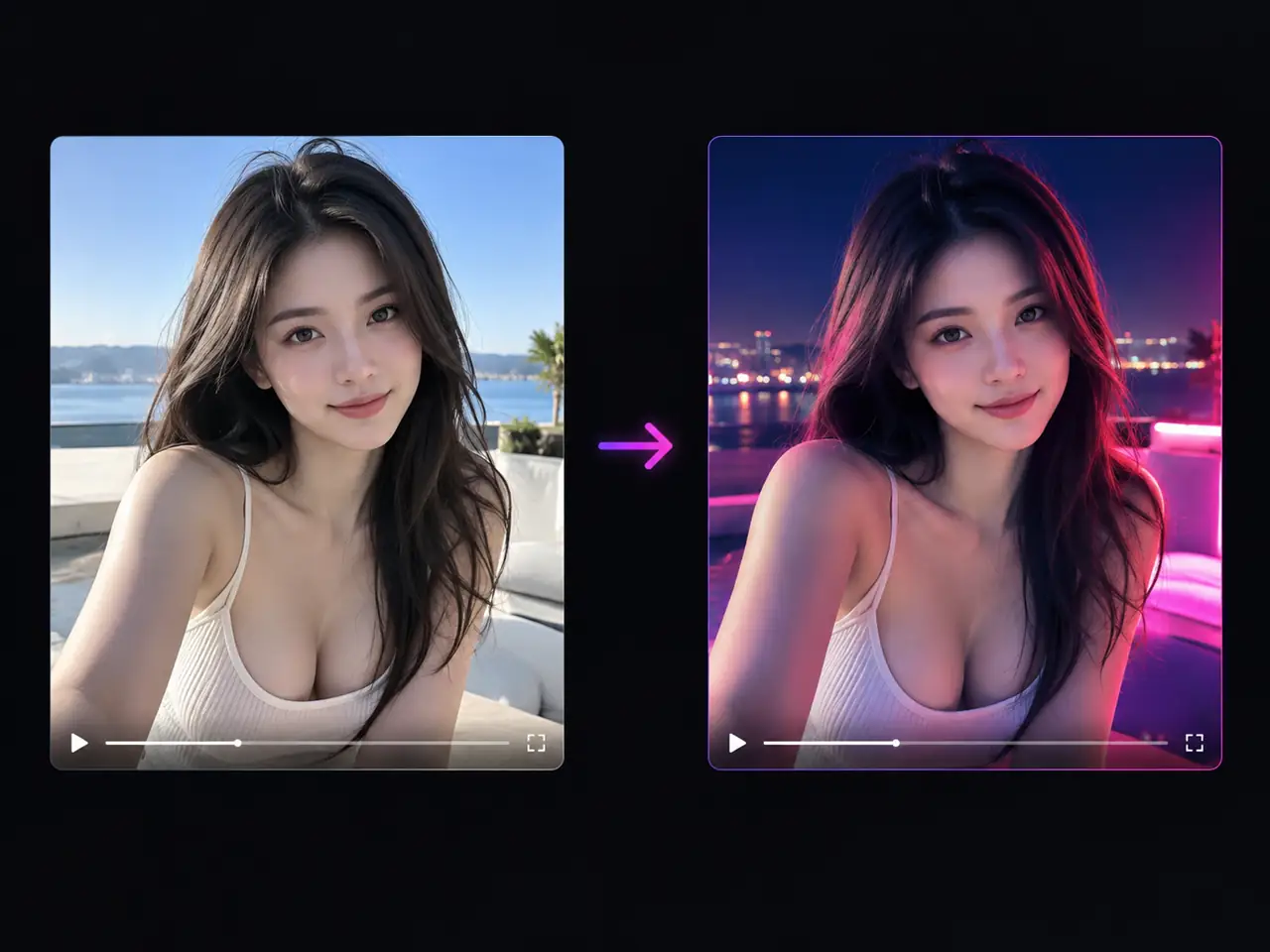
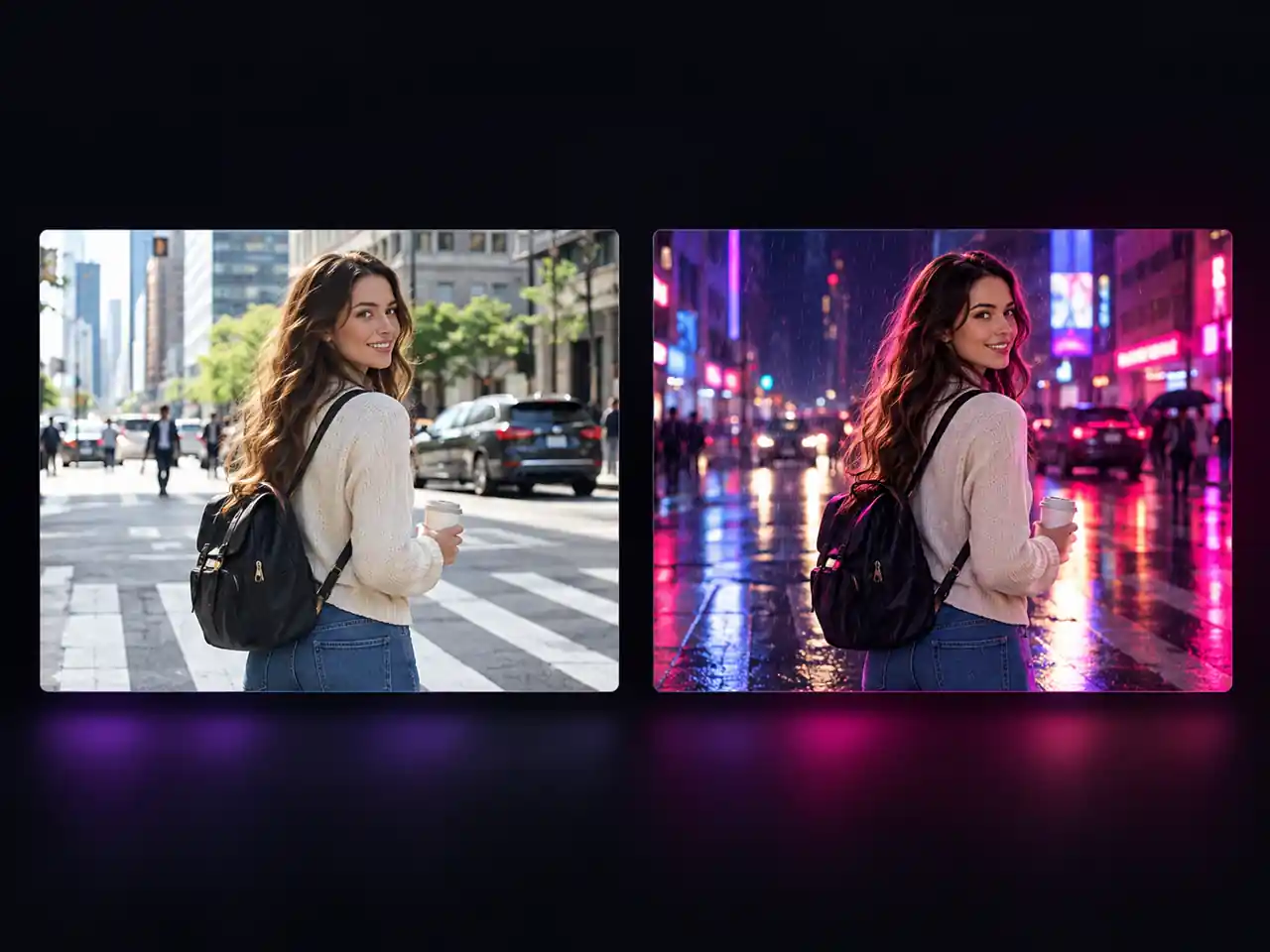
AI video editing means handing a finished clip to a model and describing the change you want, instead of moving pieces around on a timeline. You upload the source video, write a prompt such as "make this look like a rainy night in Tokyo", and the model regenerates the shot with that change baked into every frame. Nothing is cut, dragged, or keyframed: the footage is generated again, so the new style or object belongs in the scene instead of sitting on top of it. That is also the honest limit of this page: it is a transformer, not a trimmer. If you need to take three seconds off the front or add captions, that is timeline work, and a traditional editing app does it better. What you get here is the thing a timeline cannot do: a clip that looks like it was shot in another place, in another style, with different things in frame.
What You Can Change in Your Video
Six ways to edit video with AI, from a full restyle to a single swapped element, all starting from one clip you already have
Restyle the Footage, Not Just a Filter on Top
- Restyles every frame instead of tinting the original
- Keeps your subject, framing, and motion intact
- Handles illustrated, cinematic, vintage, and neon looks
- Draft at 720p, deliver the keeper at 1080p
Who Uses AI Video Editing?
Teams that already have footage and need it to look like something else
Social Video Creators
Turn one filmed clip into a week of posts. Restyle a take for a different series, push it through a second treatment for another channel, and keep the subject you actually shot instead of stock footage.
Performance Marketers
Creative testing runs on variants, and variants normally mean another shoot. Change the setting, wardrobe, or colour treatment of one hero clip and take four looks into the ad account, all from the same approved footage.
Ecommerce and Product Teams
Shoot the product once, then place it anywhere. Swap the tabletop for a kitchen, a studio sweep, or an outdoor setting, and produce colourway variants without waiting for the next sample.
Indie Filmmakers and Music Video Makers
Test a look before committing budget to it. Run a take through two or three treatments to see which one the story wants, or rebuild a location you could not shoot in.
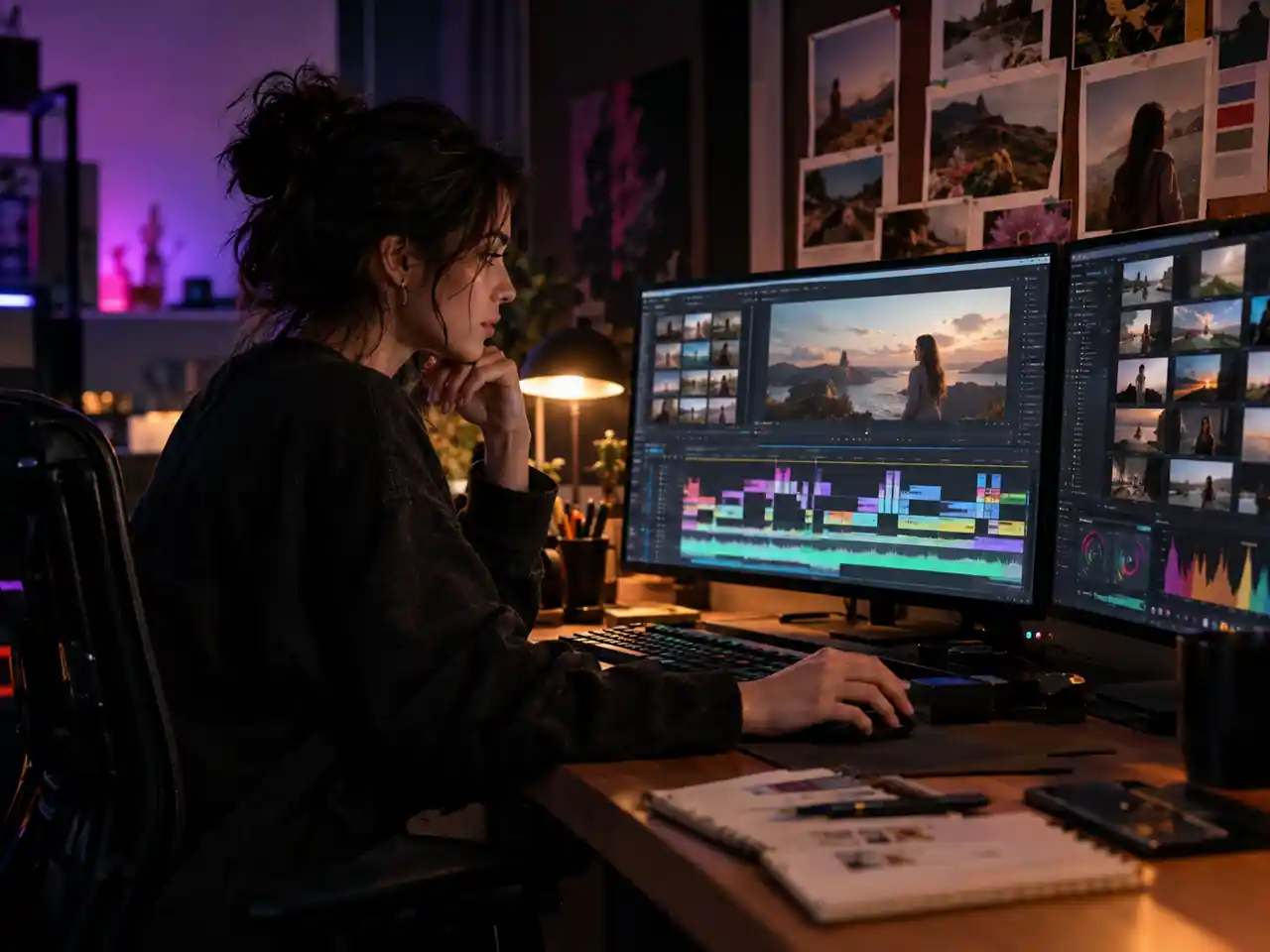
Agencies and Freelance Editors
Answer a client note that says "can it feel more like this reference" in one generation rather than a night of grading. Attach their board, restyle the section, and bring it back into the timeline.
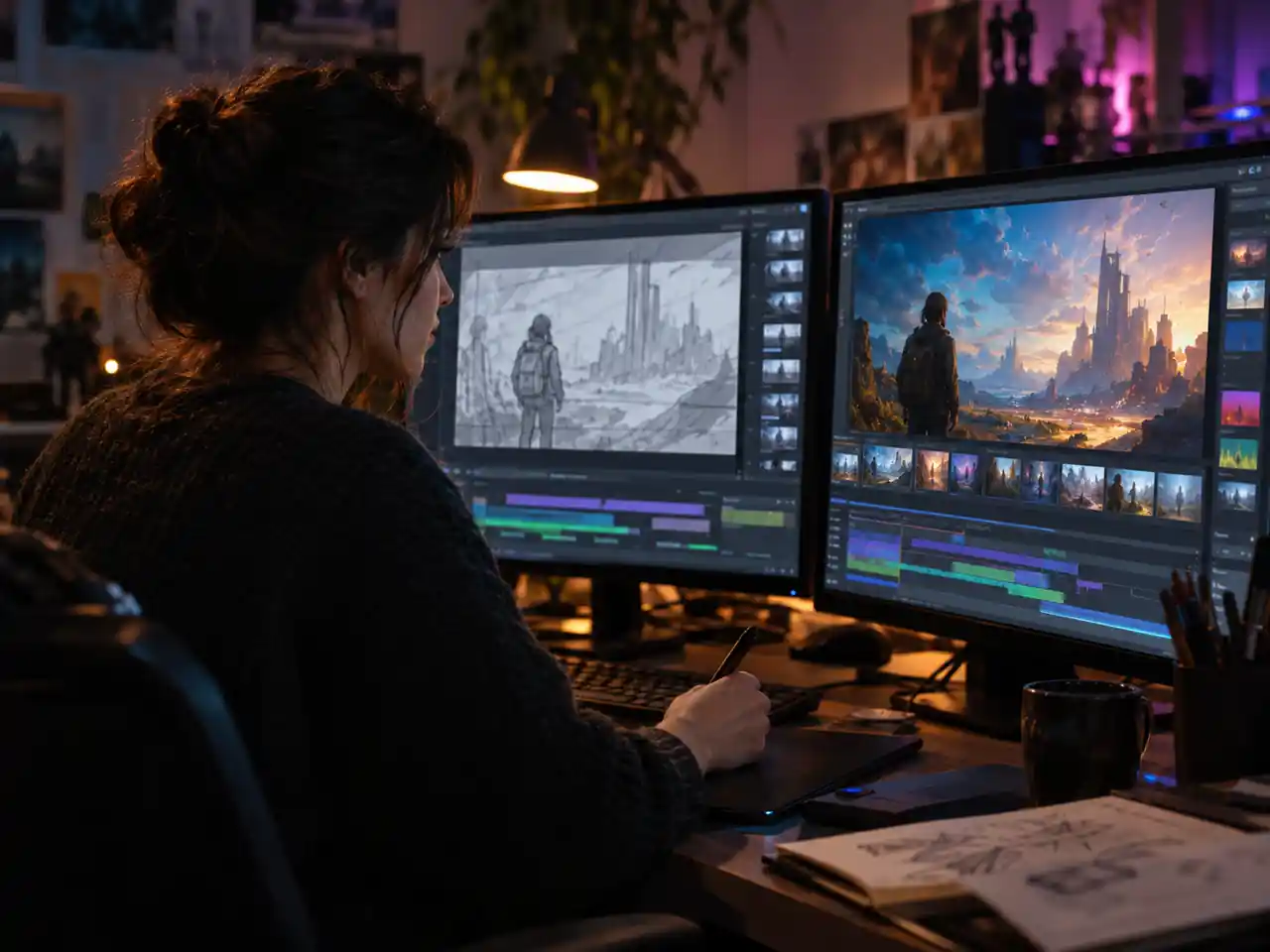
Concept Artists and Prototypers
Use existing footage as a moving sketch. Push a rough phone clip toward a finished art direction to show a director or a client what the shot could look like before anyone books a crew.
Why Edit Video with AI Here?
What this tool does well, and exactly where it stops
Your Own Footage Stays the Subject
This starts from the clip you shot, not from a prompt about a stranger. The person, the product, and the movement in the result are the ones you uploaded, which is what makes it usable for client work.
Your Sound Can Stay
Set the Audio control to Keep Original and the track from your upload comes back with the edited picture. No new voice or score is generated, so what you hear is what you recorded.
References Do the Hard Explaining
Up to five reference images carry the palette, wardrobe, set, and lighting that words describe badly. Pair them with a prompt of up to 5,000 characters and you can be specific without writing an essay.
Swap Models Without Leaving the Page
The model dropdown is not locked. If another supported engine handles your shot better, switch it in place and rerun the same upload and prompt rather than starting over somewhere else.
Clear Limits, No Surprises
Sources from 3 to 60 seconds and up to 100MB, output at 720p or 1080p, framing and length following your clip, and no invented audio. Every limit is stated up front so you can plan the rest of the edit around it.
Nothing to Install
It runs in the browser on any machine. No plugin, no local render, no project file to track, and no export bar to watch before you know whether the idea worked.
Simple Process
How to Edit a Video with AI in 4 Steps
From upload to finished clip in a single pass
1
Upload Your Source Video
Drop in one clip in MP4 or MOV, up to 100MB and up to 60 seconds long. This is the footage the model rebuilds, so pick the section that matters rather than the whole scene.
2
Attach Reference Images if You Have Them
Optionally add up to five images in JPG, PNG, or WebP at 10MB each. Use them to pin down a palette, a set, a wardrobe piece, or a lighting mood that is hard to put into words.
3
Describe the Edit and Set Your Output
Write what should change, in as much detail as you like, up to 5,000 characters. Then choose 720p or 1080p, set the Audio control to Auto or Keep Original, and fix a seed if you want repeatable runs.
4
Generate and Download
Run the generation, review the result, and adjust the prompt or swap a reference image if the look drifts. Download the finished clip and take it back into your editing app for captions and assembly.
Frequently Asked Questions about AI Video Editing
Straight answers on what this tool changes, what it cannot do, and the limits on uploads, sound, and output
Ready to Edit Your Video with AI?
Upload a clip of 3 to 60 seconds, describe the change, and get a reworked version back at 720p or 1080p with your original sound kept.