





Remove Color from Image and Make It Transparent
Pick any color and erase it across your whole image in seconds. Upload a PNG, JPG, or WebP, choose a color with the eyedropper or a hex code, set the tolerance, and download a clean transparent PNG. Fast, private, and free in your browser.
Eyedropper and hex color picker • Tolerance and feathering controls • Transparent PNG export
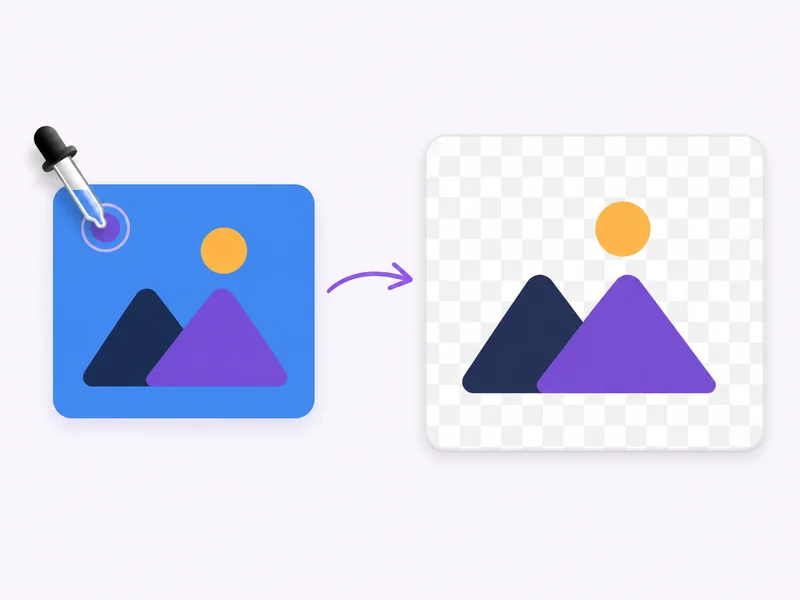
What Is an Image Color Remover?
An image color remover is an online tool that finds every pixel of a chosen color in a picture and turns it transparent. Also called a color remover from image, an AI color remover, or simply a color remover, it works differently from a background remover: you pick the exact color to erase, so you can clear one shade, a logo fill, a solid backdrop, or any particular color from a photo. Upload a PNG, JPG, or WebP, use the eyedropper or a hex code to select the color to remove, and export a clean transparent PNG. It runs in your browser, so you can remove color from image online without installing software. UK spellings work too: use it as an image colour remover whenever you need to remove colour from image files or remove colour to transparent.
How to Remove Color from an Image in Three Steps
Select the color to remove from your image, fine-tune the result, and export a transparent PNG.

Upload a PNG, JPG, or WebP
Start with a photo, screenshot, logo, or graphic that has a solid or unwanted color. The image color remover works online in your browser, so there is nothing to install.
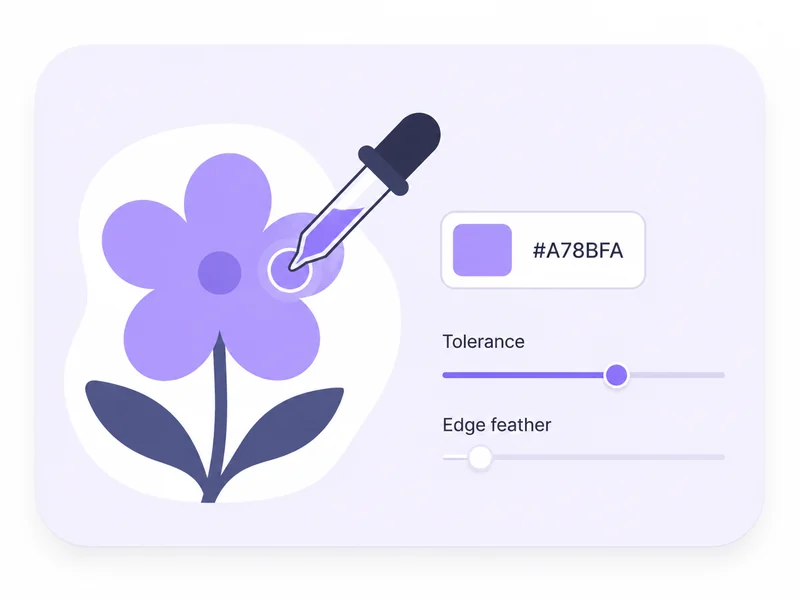
Select the color to remove
Use the eyedropper to click the color in your image, or type a hex code to target a particular color. Then set the tolerance slider to control how many similar shades are removed, and add feathering for clean edges.

Remove the color and download
The tool erases every matching pixel across the whole image and turns it transparent. Download a clean transparent PNG, ready for design, product photos, or your next edit.
What Can You Do with an Image Color Remover?
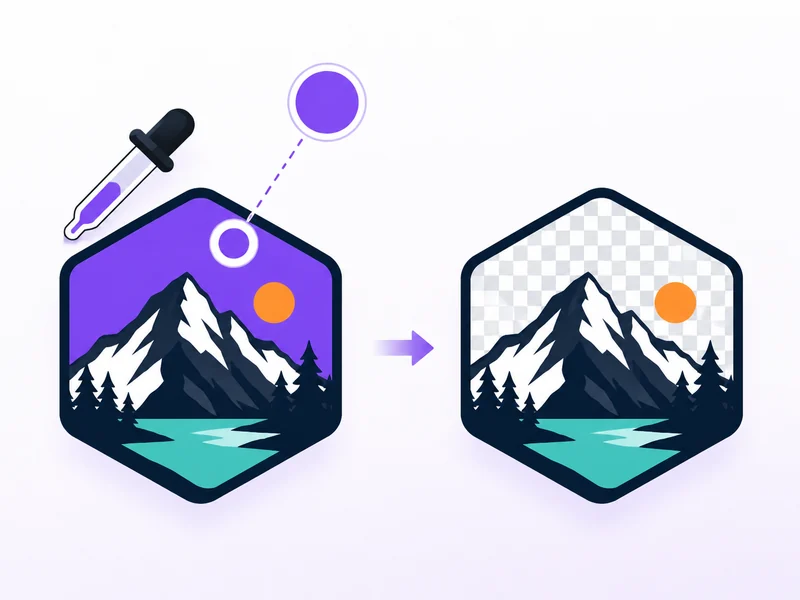
Erase an exact color instead of tracing it by hand, whether it is a logo fill, a solid backdrop, or one particular color in a photo.
- Use the eyedropper color picker to grab a color straight from your image, or enter a hex code
- Remove a specific color from image files without brushing or manual masking
- Target one shade at a time, such as a logo fill, a solid backdrop, or a colored border
- Erase or delete color from image areas wherever that color appears, in one click
Loved by Creators Who Erase Colors Every Day
Designers, sellers, and marketers use Makify AI to remove a chosen color from picture uploads and export clean, reusable transparent PNGs.
I use the eyedropper to remove a specific color from image files all the time, like the solid fill behind a logo. It erases that exact color and exports a transparent PNG in one pass.

Emma Wilson, Brand Designer
Emma Wilson
Brand Designer
Product shots on a flat green backdrop are easy now. I pick the green, remove all of that one color from the image, and the whole background drops to transparency.

Marcus Johnson, Ecommerce Seller
Marcus Johnson
Ecommerce Seller
The tolerance slider is the part I love. I can remove color from image with feathering so the edges stay smooth instead of looking cut out with scissors.

Sofia Martinez, Social Media Lead
Sofia Martinez
Social Media Lead
I paste a hex code when I know the exact color, and it erases that particular color from the photo everywhere. Downloading a transparent PNG straight away saves me a trip to a heavy editor.

Daniel Kim, Print Designer
Daniel Kim
Print Designer
Being able to remove color from a picture online, without installing anything, keeps our campaign assets moving. White and black backdrops come off cleanly.

Priya Sharma, Marketing Manager
Priya Sharma
Marketing Manager
It is a proper color eraser, not a background guesser. I choose which color goes, and everything else stays exactly as it was.

Jason Lin, Content Creator
Jason Lin
Content Creator
Image Color Remover FAQ
Answers about how to remove a color from an image, control tolerance and edges, supported formats, and when to use a different Makify tool.
Upload your image, then use the eyedropper to click the color you want gone or enter its hex code. Set the tolerance, and the tool erases that one color from the image and makes those pixels transparent, then you download a PNG.
Pick the exact shade with the eyedropper or a hex value. To remove a specific color from image files, keep the tolerance low so only that particular color is erased, or raise it to include nearby shades. Then export a transparent PNG.
The tool works globally, so it removes all of one color from an image at once. Choose the color, and every matching pixel across the whole picture is cleared to transparency, not just inside a selected area.
Yes. Removing a color turns every matching pixel transparent, and the result is exported as a transparent PNG that keeps the alpha channel, so you can place it over any background.
You can upload PNG, JPG, or WebP images, and the result always downloads as a transparent PNG. That makes it easy to reuse the cutout in design tools, product photos, and slides.
Yes. Black, white, and green are common examples. Pick any of them with the eyedropper or a hex code, and the tool erases that color from the image everywhere it appears, then makes it transparent.
Use the tolerance slider to decide how many similar shades of your chosen color are removed, and use feathering to smooth the edges. Remove color from image with feathering when you want clean, natural transitions instead of jagged outlines.
Yes. Use it as a PNG color remover: upload the PNG, pick the color to erase, and download a new transparent PNG. It removes color from PNG files just like JPG or WebP.
Yes. It is free and runs online in your browser, so you can remove color from image online without installing anything. Your upload is processed quickly and privately.
Pick the color with the eyedropper or enter its hex value, then set the tolerance for how close a match must be. That lets you remove a certain color from an image, including near-identical shades you might otherwise miss.
Yes. Use it as a photo color remover or a picture color remover — the steps are the same: upload it, pick the color to remove, adjust tolerance and feathering, and export a transparent PNG. You can remove color from a picture or a photo in the same few clicks.
Removing a color erases one shade you choose, wherever it appears, which is perfect for solid fills, logos, or a single backdrop color. Removing the background detects the main subject and cuts out everything behind it, regardless of color. If your background is many colors or a real scene, use the right Makify tool: our Image Background Remover. To clear on-image text instead, use the Image Text Remover.
Remove a Color from Your Image Now
Pick a color, erase it everywhere it appears, and download a clean transparent PNG in seconds.