



Frames to Video AI That Generates the Motion Between Two Stills
Upload a first frame and a last frame, say what should happen between them, and get back a clip that really travels from one still to the other. No timeline, no tweening, nothing to install.
You set both ends, the motion is generated • Directed reveals and match cuts • Delivery-grade 4K
What Is Frames to Video AI?
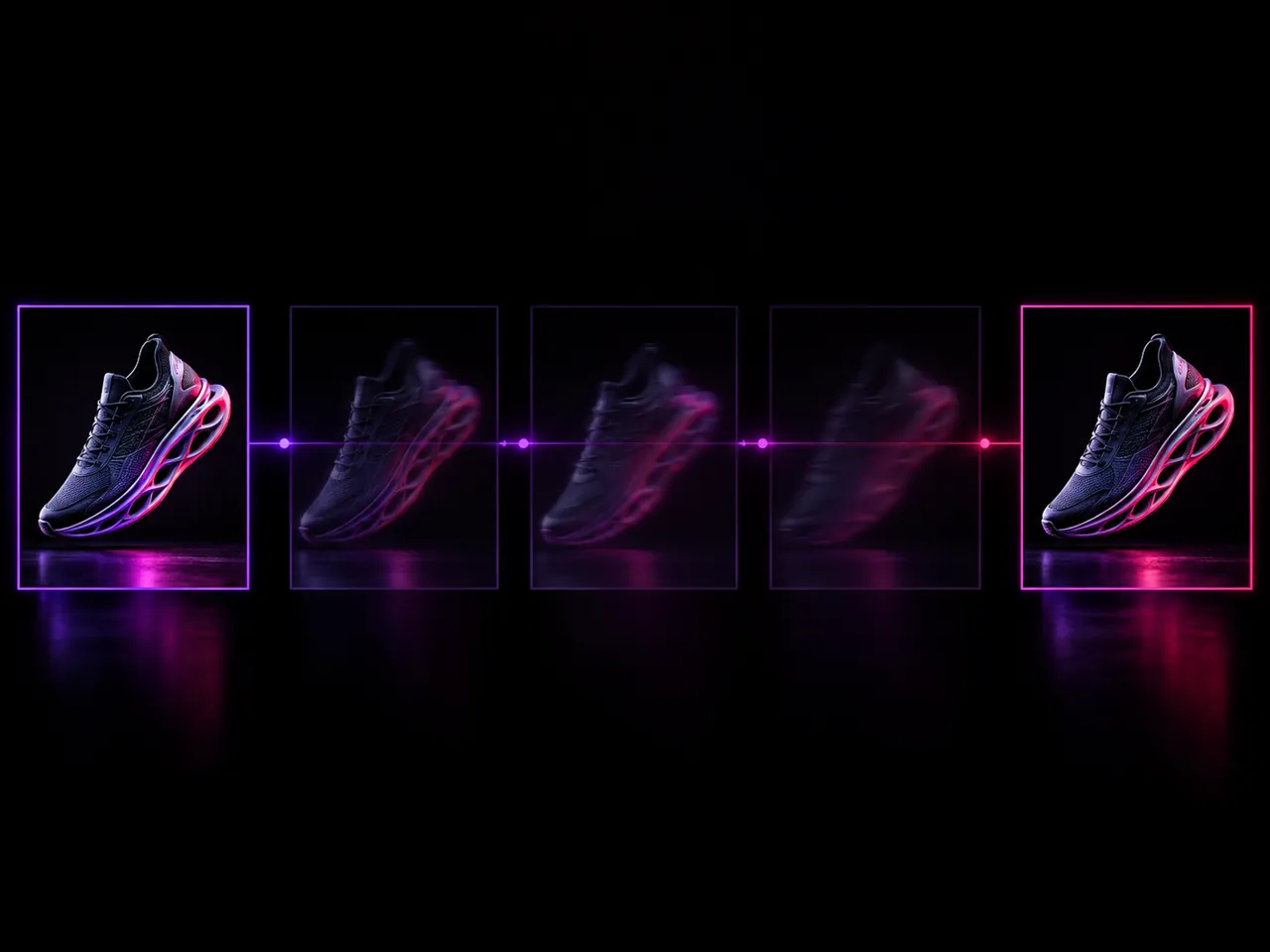
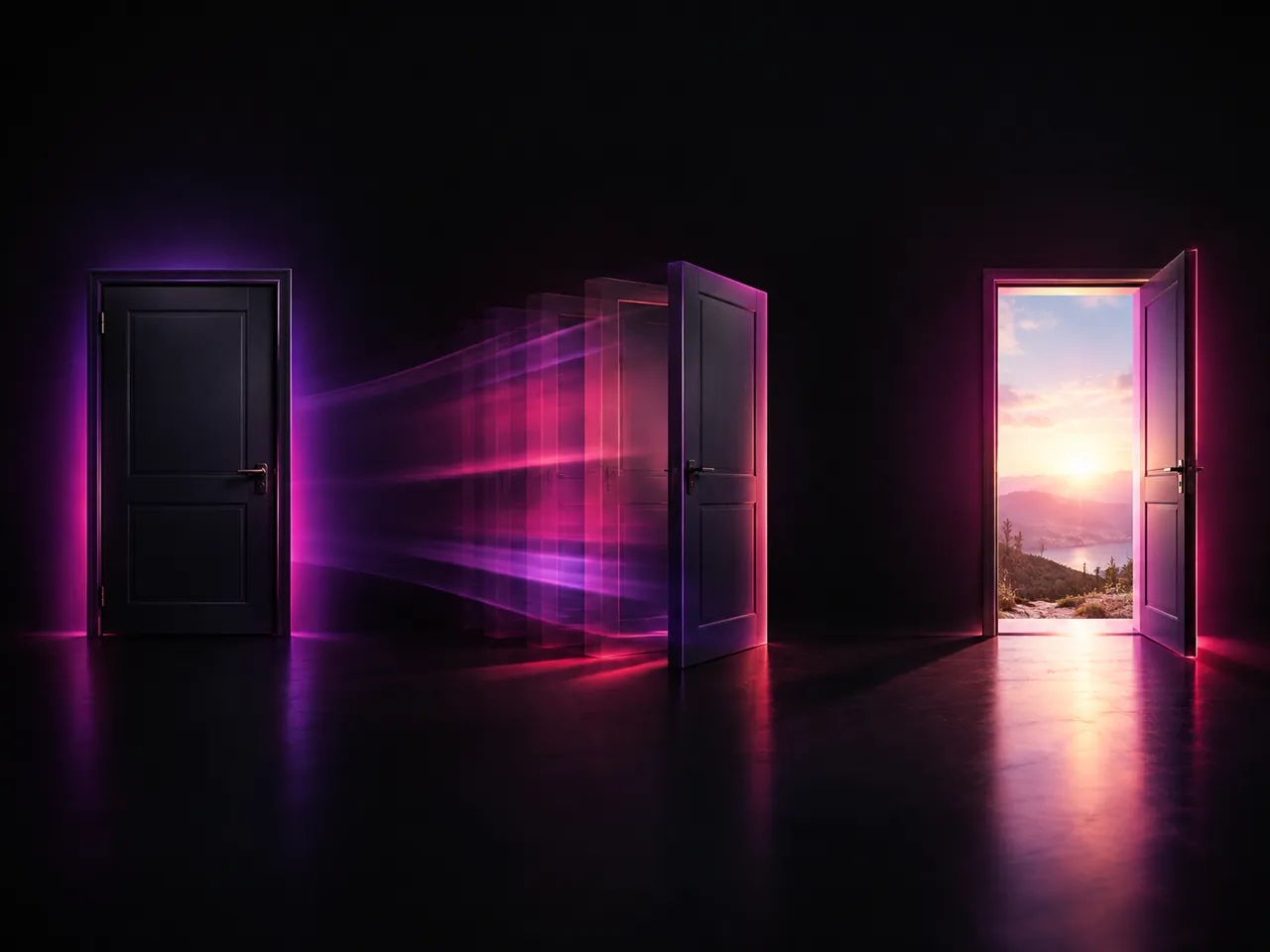
Frames to video AI is an online tool that takes two still images, a first frame and a last frame, and generates the video that connects them. Instead of cutting or dissolving between the two pictures, the model reads both ends of the shot, works out what has to move, and renders every frame in the middle, so the clip travels from one still to the other as a single continuous take. The same job goes by several names: frame to video AI, keyframes to video, start and end frame video, or filling in the motion between two images. They all describe one workflow. You supply the two anchors, the model supplies the in between. Because both ends are pinned to images you chose, you control where the shot opens and where it lands, which is what separates frames to video from prompting a clip from scratch and hoping it stops in the right place.
What You Can Do with Frames to Video
Six ways to work the first and last frame workflow, from your own keyframes to prompt guided motion and 4K output
- Two upload slots on the page: one first frame, one last frame
- Both ends stay locked to the exact images you supplied
- Movement, camera travel and lighting change are generated, not blended
- No timeline, no keyframe curves, no editing app to install
Who Uses Frames to Video AI?
Creators, filmmakers, animators, product teams and editors who already know how a shot should start and end
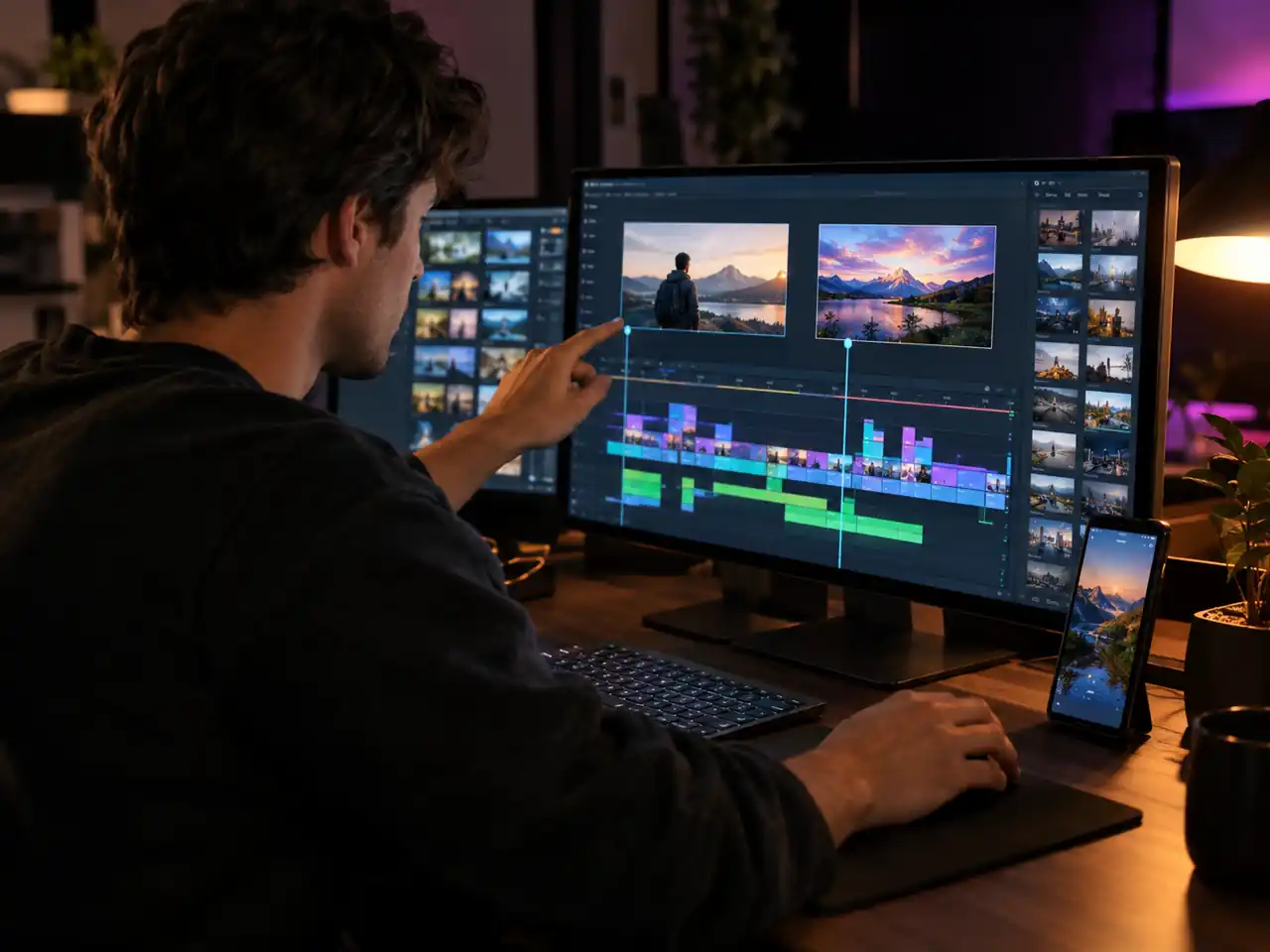
Short Form Creators
Turn a strong opening still and a strong closing still into a 9:16 clip for Reels, Shorts and TikTok. Hook and payoff are both frames you picked, so the clip lands where you planned instead of drifting.
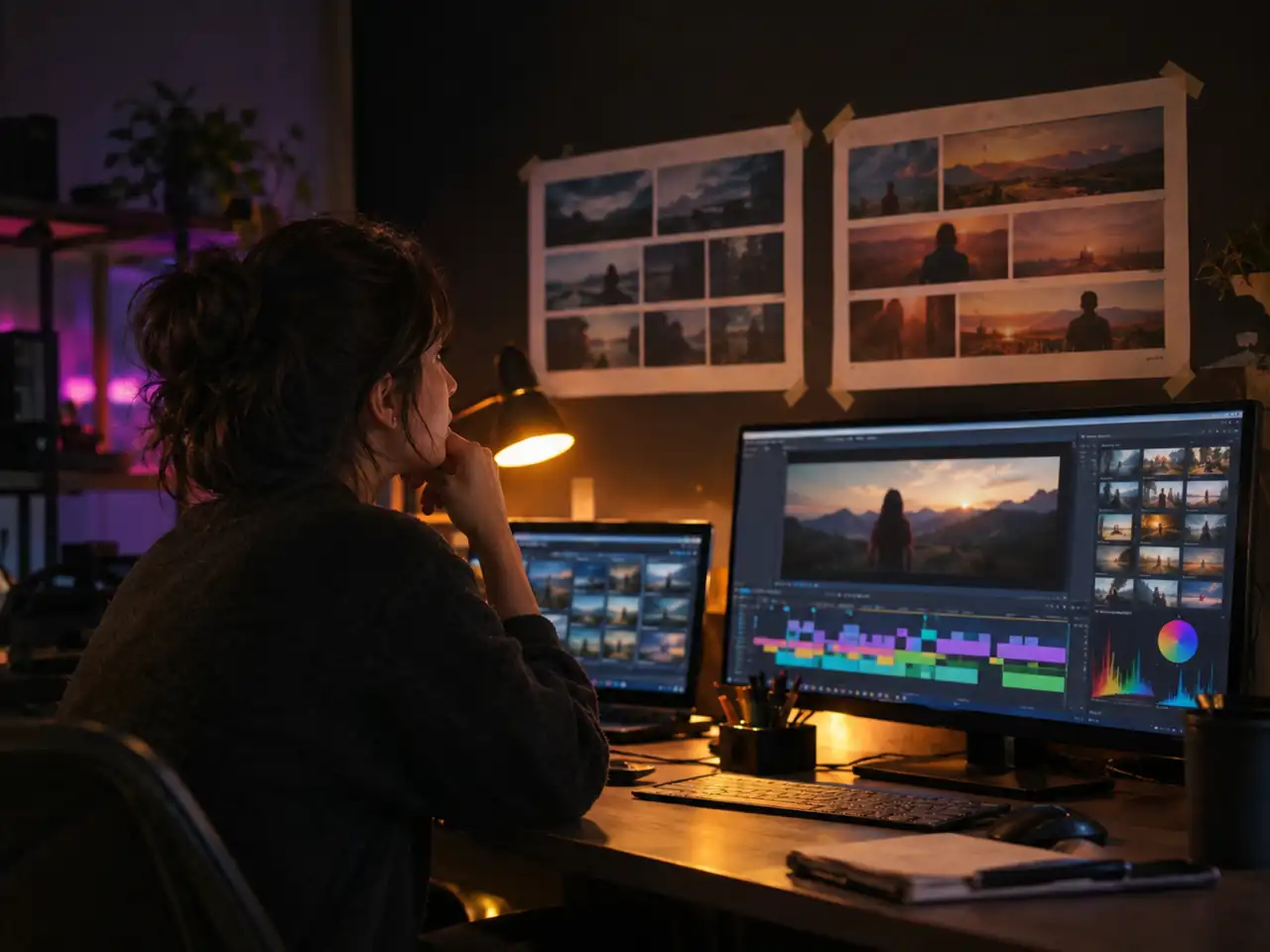
AI Filmmakers
Generate a shot that has to begin and end on specific compositions, which is what a cut demands. It gives continuity between boards, so the outgoing frame of one shot and the incoming frame of the next line up without a hand animated fix.
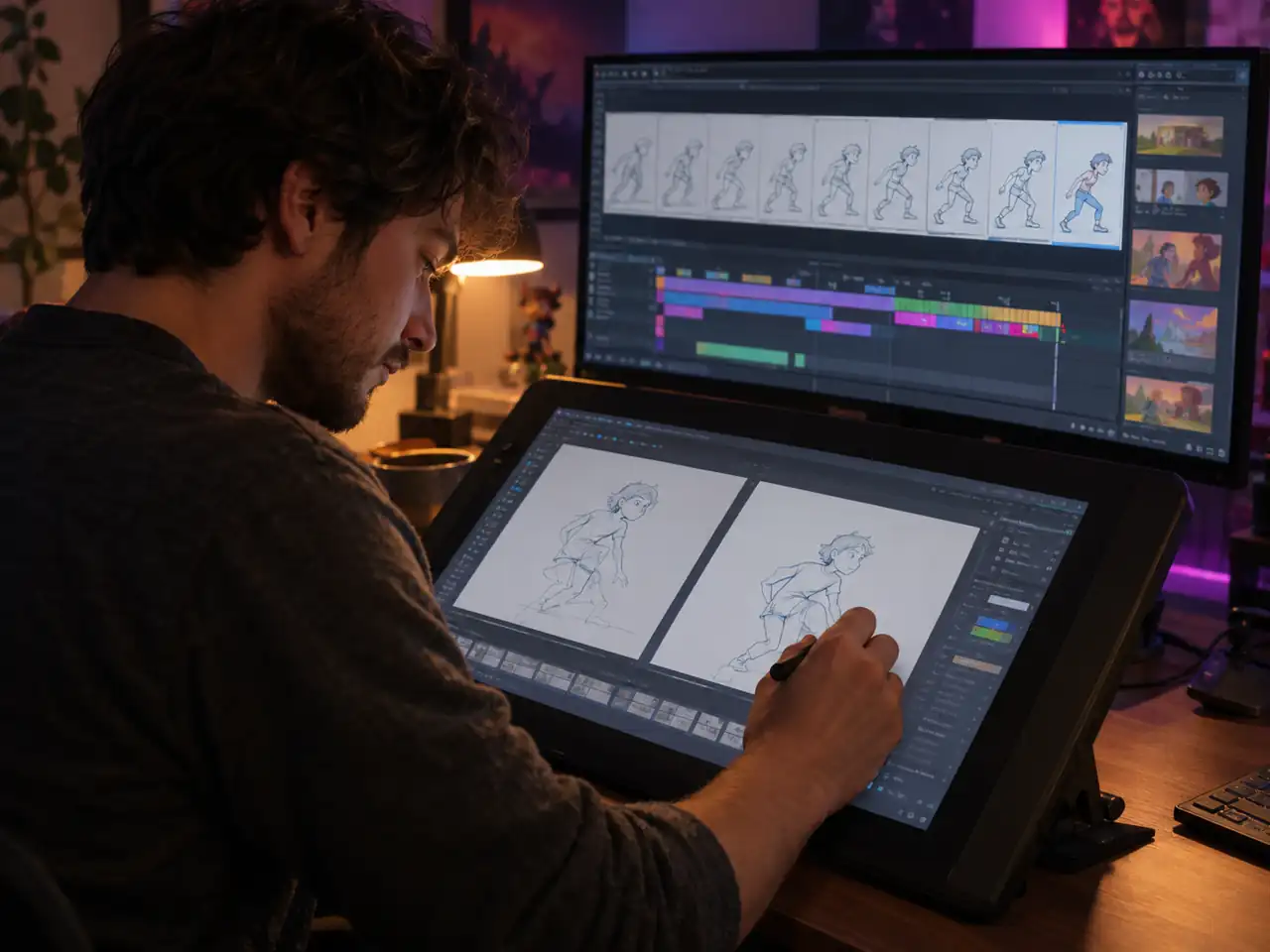
Animators and Illustrators
Skip the inbetweening. Feed the tool two drawn poses, a start and an end, and let it generate the span between them. It previews the timing of a sequence before anyone cleans up the frames.
Ecommerce and Product Teams
Two product photos, one straight on and one at an angle, become a short rotation for a product page or an ad. The item keeps the shape and colour of your real shots at both ends, because those ends are your photographs.
Video Editors
When the middle of a take is unusable, pull the last good frame before the gap and the first good frame after it, and generate a bridge. It also builds a motion transition between two shots that refuse to cut together.
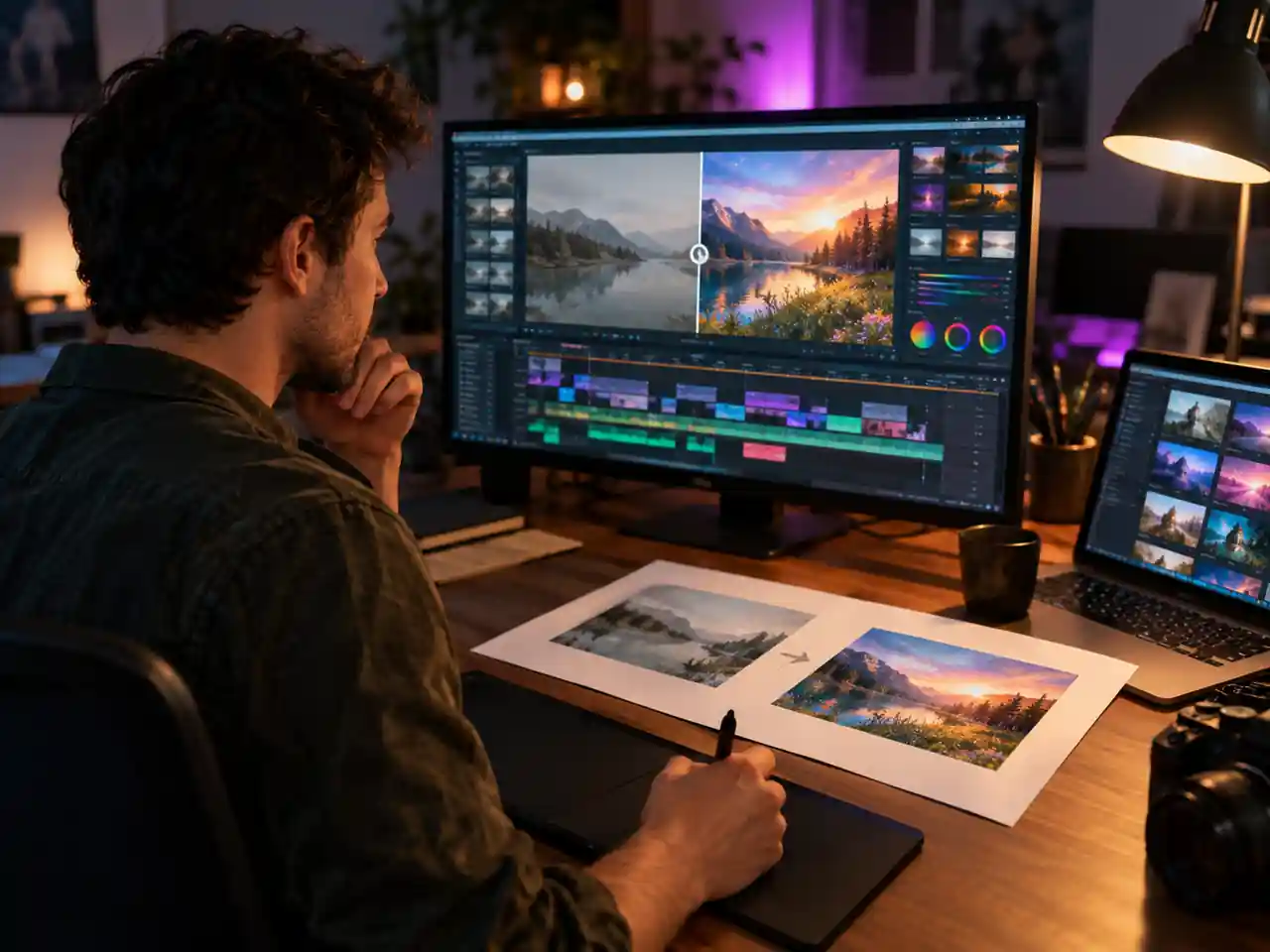
Educators and Explainer Makers
Before and after diagrams explain more when the change is visible. Upload the before state as the first frame and the after state as the last, and the generated middle shows the process instead of asking a class to picture it.
Why Use Frames to Video AI?
What you get from pinning both ends of a shot and generating the movement in between
Both Ends Stay Where You Put Them
A text prompt alone decides its own ending. Here the ending is a file you uploaded. Pinning the first and last frame is the point of the format, and it is why frames to video fits a storyboard or a cut in a way free running generation cannot.
Motion Generated, Not Faked
Morphs stretch pixels and fades hide the fact that nothing moved. This generates the intermediate frames instead, so limbs travel and parallax appears rather than smearing between two photos.
Up to 4K When the Draft Is Right
Draft at the preselected 720p while you test prompts, then rerun the keeper at 1080p or 4K. The default engine covers 480p, 720p, 1080p and 4K, so the rough test and the delivery render come from the same two frames.
Four to Fifteen Seconds in One Pass
Clip length is a setting, not a stitching job. Anything from 4 to 15 seconds comes out of one run on the default engine, which covers a social cut, a product loop or a slow reveal without an editor.
Optional Generated Sound
The default engine can generate audio along with the picture, and the switch is off unless you turn it on. A silent clip stays silent for your own music bed, and a clip that needs ambience arrives with sound attached.
Free to Try in the Browser
Frame to video AI free of an install is the point of running it here. Sign in, upload two stills and generate in the browser, with no plugin, no render farm and no local graphics card.
How to Turn Two Frames into a Video
Generate the motion between your two frames in 4 steps
Open Frames to Video and Sign In
Sign in and open the frames to video workspace at the top of this page. It loads on Seedance 2.0 as the default engine, and you can switch later from the model dropdown.
Upload Your First and Last Frame
Add one still to the first frame slot and one to the last frame slot. These two images become the opening and closing frames, so pick stills that show the beginning and the end of the movement you want.
Describe the Motion and Set Options
Write what should happen between the two frames, including camera travel and pacing. Then set aspect ratio, resolution and a clip length between 4 and 15 seconds, and decide whether the run should generate audio.
Generate, Review and Download
Start the run and watch the generated middle play back between your two frames. Download the take you like, or adjust the prompt, the length or the engine and rerun the identical pair for another version.
Frequently Asked Questions about Frames to Video AI
Common questions about turning a first and last frame into video: clip length, resolution, sound and commercial use
Turn Your Two Frames into a Video
Upload a first frame and a last frame, describe the motion between them, and generate in the browser.